
How to Track Invoice Payments as a Freelancer
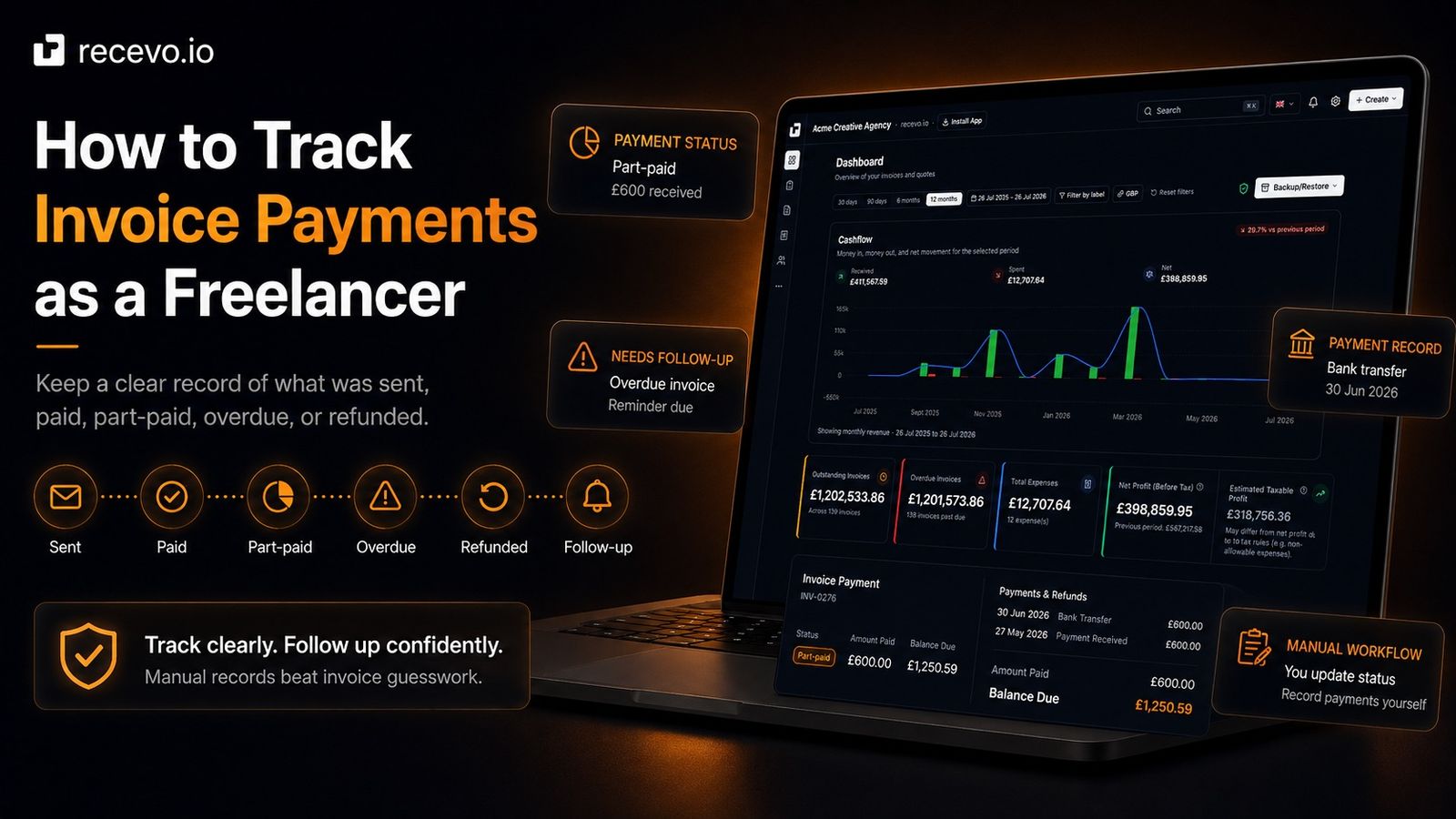
Creating an invoice is only the first step. Freelancers also need a simple way to track what has been sent, paid, part-paid, overdue, refunded, or still needs follow-up.
Update, 4 October 2026: recevo.io can now take card payments through Stripe. Connect your own Stripe account and every invoice you share or download carries a secure payment link. When your client pays through it, recevo.io is notified automatically and marks the invoice as paid. Where this guide says recevo.io does not know when a client has paid, that now applies only to payments made outside Stripe, such as bank transfers and cash. Read our guide to accepting card payments on your invoices with Stripe.
Creating an invoice is only half the job.
Once the invoice has been sent, you still need to know what happened next.
Was it paid?
Was it part-paid?
Is it overdue?
Did the client ask for a change?
Was a refund issued?
Does it still need a follow-up?
For freelancers, sole traders, consultants, tradespeople, creatives, and independent workers, invoice payment tracking is one of the easiest things to overlook.
You may start with a simple invoice PDF. Then you send more invoices. Then some are paid quickly, some are paid late, some are part-paid, and some need chasing.
Before long, the hard part is not creating the invoice.
The hard part is knowing which invoices need your attention.
This guide explains how to track invoice payments clearly, what invoice statuses are worth using, what payment details to record, and how recevo.io can help you keep a better manual record of your invoice and quote workflow.
Important note: recevo.io does not automatically know whether a client has paid, accepted, declined, or ignored something. It does not connect to your bank account, monitor your inbox, or automatically change invoice and quote statuses for you.
You stay in control. You update statuses yourself. You record payments yourself. recevo.io gives you a clearer place to manage that workflow.
Why invoice payment tracking matters
An invoice is not finished when the PDF is created.
It is finished when the payment has been received, recorded, and matched to the right invoice.
Without a tracking system, it is easy to lose sight of what is happening.
You might forget to follow up on an overdue invoice. You might mark something as paid in your head but not in your records. You might receive a partial payment and forget what remains outstanding. You might send a client a reminder for an invoice they already paid under a different reference.
Good invoice payment tracking helps you:
- see what has been sent
- see what has been paid
- spot overdue invoices
- record partial payments
- record refunds
- keep payment notes
- avoid double-chasing clients
- prepare cleaner records for your accountant
- understand your actual cash position
For freelancers, this does not need to be complicated.
You just need a consistent habit.
Creating an invoice is not the same as tracking it
Many tools help you create an invoice PDF.
That is useful, but it is only the starting point.
Once the invoice leaves your desk, the workflow continues.
A proper invoice tracking workflow should answer questions like:
- Has this invoice actually been sent?
- When is it due?
- Has the client paid it?
- How much has been paid?
- Is there still a balance due?
- Was a refund issued?
- Has the invoice been cancelled or replaced?
- Have I followed up yet?
- What did the client say?
If you cannot answer those questions quickly, your records can become messy even if your invoice PDFs look professional.
The minimum invoice statuses freelancers should track
You do not need dozens of statuses.
Too many statuses can make the system harder to use.
For most freelancers, a simple set is enough.
Draft
Use draft for invoices that are still being prepared.
A draft invoice may not have final line items, payment terms, dates, tax details, or client information yet.
Draft status is useful because it separates unfinished invoices from documents that have actually been sent.
Do not treat a draft as money owed.
It is still a work-in-progress document.
Sent
Use sent when the invoice has been sent to the client.
This could mean you emailed a PDF, shared an encrypted link, or sent the invoice through your normal client communication channel.
The key point is that the client has received, or should have received, the invoice.
In recevo.io, you should update this status yourself when you send the invoice. The app does not automatically know that a client has received your email or seen a message.
Paid
Use paid when the invoice has been fully paid.
This should normally happen after you have checked that the money has arrived and recorded the payment.
Do not mark an invoice as paid just because the client says they have sent payment.
Wait until you can confirm it.
recevo.io lets you record payments against invoices, but you still need to add the payment details yourself.
Part-paid
Use part-paid when the client has paid some of the invoice, but not all of it.
This is common when:
- a deposit has been paid
- a milestone payment has been made
- the client paid the wrong amount
- the invoice is being paid in instalments
- a partial refund or adjustment has changed the balance
Partial payments need careful records because the invoice is not unpaid, but it is not fully paid either.
A simple “paid or unpaid” system is not enough.
Overdue
Use overdue when the payment due date has passed and the invoice has not been fully paid.
Some systems may calculate overdue status automatically from the due date, but you should not rely on assumptions unless the tool clearly does that.
With recevo.io, think of status as something you manage intentionally. If an invoice needs chasing, make sure your records reflect that.
You can also use private notes to record follow-up activity.
Refunded
Use refunded when some or all of the payment has been returned to the client.
This may happen because of a cancellation, correction, overpayment, dispute, or change in scope.
Refunds should be recorded carefully.
Otherwise, your income records may show money that you no longer kept.
recevo.io supports payment and refund records, so you can keep the invoice history clearer than simply editing the invoice total after the fact.
Cancelled or replaced
Use cancelled or replaced when an invoice should no longer be treated as payable.
This might happen when:
- the invoice had an error
- the client requested a different billing entity
- the invoice was duplicated
- the project was cancelled
- the invoice was replaced with a corrected version
Avoid deleting invoice history unless you are confident that is appropriate for your records.
Often, it is better to keep a clear trail showing that an invoice was cancelled or replaced.
Quote statuses matter too
Payment tracking is not only about invoices.
Quotes also need status tracking.
A quote might be:
- draft
- sent
- accepted
- declined
- expired
- replaced
- converted to invoice
Again, recevo.io does not automatically know what the client decided unless you update the record.
If a client accepts a quote by email, phone, message, or meeting, you should update the quote status yourself.
That makes your quote-to-invoice workflow much clearer.
Manual status tracking is not a weakness
Manual status tracking may sound less advanced than automatic tracking.
But for many independent workers, it is actually a sensible fit.
Freelancers often receive client updates in different ways:
- phone calls
- bank transfers
- text messages
- in-person conversations
- payment references
- client portals
- finance team replies
No simple invoicing app can reliably understand all of that context without connecting to more systems, collecting more data, and adding more complexity.
recevo.io takes a simpler approach.
It gives you a structured place to record what happened.
You decide when a quote was accepted.
You decide when an invoice was sent.
You decide when a payment has arrived.
You decide when something needs follow-up.
That keeps the workflow private, simple, and under your control.
What payment details should freelancers record?
When a payment arrives, do not only mark the invoice as paid.
Record the useful details too.
At minimum, record:
- payment date
- amount paid
- payment method
- invoice number
- payment reference
- notes, if anything unusual happened
For example:
“£500 received by bank transfer on 30 June 2026. Reference INV-0042.”
This makes it easier to match payments later.
It also helps if the client pays in multiple parts or uses the wrong reference.
Track partial payments properly
Partial payments are where many manual systems start to break down.
For example, imagine you send a £1,200 invoice.
The client pays a £600 deposit.
Later, they pay £400.
Now £200 remains outstanding.
If you are using a basic document template, you may need to track that manually in a spreadsheet or notes app.
That can quickly become confusing.
With a payment ledger, you can record each payment separately and see the remaining balance.
recevo.io lets you record payments and refunds against invoices, so the invoice balance can reflect what has actually happened.
You still need to enter the payment details yourself, but the record is much clearer than trying to remember everything from email threads and bank statements.
Track refunds separately
Refunds should not be hidden.
If you refund a client, record it as part of the invoice history.
This helps explain why the final amount received may be different from the original invoice total.
Refund records are useful when:
- the client overpaid
- the project was partly cancelled
- the invoice was adjusted
- a service was not delivered
- a credit or goodwill refund was given
Without refund tracking, your records may look more profitable than they really were.
Use invoice numbers as payment references
A simple way to improve payment tracking is to ask clients to use the invoice number as the payment reference.
For example:
“Please use invoice number INV-0042 as the payment reference.”
This makes it easier to match bank payments to invoices.
It also reduces confusion if the client pays multiple invoices around the same time.
Invoice numbers are not only for your PDF layout.
They are part of your tracking system.
Keep due dates visible
Due dates are essential for payment tracking.
Without a due date, it is harder to know when an invoice needs attention.
Every invoice should make the due date clear.
For example:
“Payment due by 30 June 2026.”
This is easier than making the client calculate the due date from vague wording.
It also makes your own follow-up process clearer.
You can review invoices by due date and decide what needs chasing.
Use private notes for follow-up history
Payment tracking is not only numbers and statuses.
Sometimes you need context.
For example:
- “Client asked finance team to process this on Friday.”
- “Reminder sent on 3 July.”
- “Client queried line item 2.”
- “Payment received but reference was missing.”
- “Part-paid, balance due after final delivery.”
Private notes help you keep that context close to the invoice.
In recevo.io, private notes are for your internal record. They are not included in PDFs or shared invoice links.
That makes them useful for follow-up history without exposing internal comments to the client.
Avoid spreadsheet confusion
A spreadsheet can work for very simple payment tracking.
But it can become fragile as your invoicing grows.
Common spreadsheet problems include:
- forgetting to update payment status
- using inconsistent labels
- overwriting old notes
- losing track of partial payments
- mixing quote and invoice records
- breaking formulas
- unclear outstanding balances
- duplicate invoice numbers
- difficulty finding the latest version
The issue is not that spreadsheets are bad.
The issue is that invoice payment tracking is a workflow, not just a list of rows.
You need invoices, due dates, statuses, payments, refunds, customer records, notes, and PDFs to stay connected.
That is where a dedicated invoicing workflow can help.
Build a weekly invoice review habit
Because status tracking is manual, the habit matters.
A simple weekly review can keep your records tidy.
Once a week, check:
- which invoices are still drafts
- which invoices have been sent
- which invoices are due soon
- which invoices are overdue
- which invoices have been paid
- which payments need recording
- which quotes need follow-up
- which quotes have been accepted
- which accepted quotes should become invoices
This does not need to take long.
The goal is to stop invoice admin building up in your head.
How payment tracking helps with client follow-up
Good payment tracking makes follow-up easier.
If an invoice is overdue, you can quickly see:
- invoice number
- amount due
- due date
- payment terms
- whether any payment has already been made
- whether you have already sent a reminder
- any private notes from previous conversations
That makes your reminder more accurate.
Instead of writing a vague message like:
“Just checking whether this has been paid?”
you can write:
“Just a quick reminder that invoice INV-0042 for £850 was due on 30 June 2026. I’ve attached the invoice again for convenience. Please let me know if you need anything else from me to process it.”
Clear records lead to clearer communication.
How payment tracking helps with accountant handoff
At some point, you may need to hand records to your accountant or prepare your own tax records.
Clean payment tracking helps because you can see:
- which invoices were issued
- which invoices were paid
- which invoices remain unpaid
- which payments were partial
- which refunds were issued
- which customers were involved
- which documents relate to which payments
recevo.io can help organise invoices, quotes, expenses, payments, refunds, PDFs, CSVs, and accountant-ready exports.
It does not replace your accountant, and it does not provide tax advice.
But it can help you keep clearer records before handoff.
How recevo.io helps track invoice payments
recevo.io is private, no-signup invoicing for independent workers.
It helps you create, send, and manually track invoices in your browser without creating an account.
With recevo.io, you can:
- create professional invoices
- create quotes and estimates
- convert accepted quotes into invoices
- set invoice numbers
- set issue dates and due dates
- add payment terms
- export professional PDFs
- share encrypted read-only links
- record payments
- record refunds
- track invoice statuses
- track quote statuses
- add private notes
- lock finalised invoices
- clone documents
- keep activity history
- manage customer details
- export cleaner records
The key word is “record”.
recevo.io helps you keep a clearer record of what has happened, but you remain responsible for updating that record.
It does not automatically detect that a bank transfer arrived.
It does not automatically know that a client accepted a quote by email.
It does not automatically mark an invoice as sent just because you downloaded a PDF.
It does not automatically chase clients for you.
You update the workflow as things happen.
That is what keeps the app simple, private, and practical for independent workers.
Why recevo.io does not automatically track everything
Automatic tracking usually requires integrations.
For example, an app may need to connect to:
- your bank account
- payment gateways
- email inbox
- client portals
- accounting software
- user accounts
- cloud sync
- team permissions
Those features can be useful, but they add setup, complexity, privacy considerations, and dependency on external services.
recevo.io is designed differently.
It focuses on browser-based invoicing, quotes, PDFs, encrypted sharing, payment records, and manual workflow control.
That makes it a good fit for freelancers who want a simple invoicing tool rather than a full accounting platform with bank-feed reconciliation and payment processing.
Does recevo.io process payments?
Card payments are processed by Stripe, through your own Stripe account.
recevo.io helps you create invoices, share them, export PDFs, and record payments and refunds.
Connect Stripe once and every invoice you share or download carries a secure payment link. Your client pays by card on Stripe's checkout, the money goes straight into your Stripe account, and the invoice is marked as paid for you. Read our guide to accepting card payments on your invoices with Stripe.
You can still include other payment instructions on invoices, such as bank transfer details, PayPal details, or another payment method.
When a client pays that way, you record the payment yourself.
Does recevo.io connect to bank feeds?
No.
recevo.io does not connect to your bank account and does not provide bank-feed reconciliation.
That is part of the product’s simpler, more private model.
If automatic bank feeds, reconciliation, or accountant-led bookkeeping workflows are essential to your business, a traditional accounting platform may be a better fit.
If you want private, no-signup invoicing with manual payment tracking, recevo.io is built for that.
Your normal workspace lives in your browser
recevo.io is browser-based by design.
Your normal workspace lives in your browser, not in a central recevo.io invoice database.
That is a deliberate privacy and ownership choice.
It means you can create invoices, quotes, payment records, and notes without handing your normal workspace to a central cloud database.
There is an important trade-off.
If browser data is cleared, your local workspace can be lost unless you have a backup.
recevo.io supports manual JSON Backup & Restore. Backup files are plain JSON for portability and transparency, so they may contain sensitive business data and should be stored securely.
Optional Encrypted Cloud Backup is also available as an off-device safety net. It is opt-in, off by default, and is not real-time cloud sync or team collaboration.
Is recevo.io accounting software?
No.
recevo.io is an invoicing-first tool for independent workers.
It includes useful depth around quotes, expenses, payment tracking, live P&L visibility, categories, tax classification, and accountant-ready exports, but it is not accounting software, tax filing software, payroll software, or a replacement for your accountant.
The goal is simpler:
Create invoices. Send PDFs. Record payments. Track status. Keep clearer records.
A simple invoice payment tracking workflow
Here is a practical workflow you can use.
1. Create the invoice
Add the client details, invoice number, line items, payment terms, issue date, due date, and payment instructions.
2. Check the invoice before sending
Make sure the amount, tax, payment reference, and due date are correct.
3. Send the invoice
Send the PDF or share link through your usual client communication channel.
4. Manually update the status to sent
Once you have sent the invoice, update the status yourself.
Do not rely on memory.
5. Record payment when it arrives
When money arrives, record the payment date, amount, method, and any useful notes.
6. Check the remaining balance
If the invoice is only part-paid, make sure the outstanding balance is clear.
7. Follow up when needed
If the due date passes and the invoice is not fully paid, use your records to send a polite reminder.
8. Record refunds or corrections
If anything changes later, record the refund, cancellation, replacement, or adjustment clearly.
9. Review open invoices weekly
A short weekly review helps keep everything tidy.
Frequently asked questions
How do freelancers track invoice payments?
Freelancers can track invoice payments by keeping clear records of invoice numbers, issue dates, due dates, payment terms, payment amounts, payment dates, payment methods, invoice statuses, refunds, and follow-up notes.
A dedicated invoicing tool can make this easier than a spreadsheet.
What invoice statuses should I use?
Useful invoice statuses include draft, sent, paid, part-paid, overdue, refunded, cancelled, and replaced.
You do not need too many statuses. The goal is to quickly understand which invoices need attention.
Should I track partial payments?
Yes. Partial payments should be recorded separately so you can see how much has been paid and how much remains outstanding.
This is especially useful for deposits, milestones, retainers, instalments, and overpayments.
Can recevo.io automatically mark invoices as paid?
Yes, when your client pays through your Stripe payment link. recevo.io marks the invoice as paid within seconds while the app is open, or the next time you open it.
You record bank transfers, cash, and other payments made outside Stripe yourself.
Can recevo.io automatically update quote status?
No. recevo.io does not automatically know whether a client has accepted, declined, ignored, or queried a quote.
You update quote statuses yourself when the client responds.
Can recevo.io record payments and refunds?
Yes. recevo.io lets you record payments and refunds against invoices, including useful details such as amount, date, method, and notes.
Does recevo.io process payments?
Card payments are processed by Stripe, through your own Stripe account. Connect it once and recevo.io adds a secure payment link to every invoice you share or download.
Payments made through the link are recorded for you, and you can still include other payment instructions and record those payments manually.
Does recevo.io replace accounting software?
No. recevo.io is an invoicing-first tool for independent workers. It is not accounting software, tax filing software, payroll software, or a replacement for your accountant.
Do I need an account to use recevo.io?
No. Open the app and start invoicing — no account required.
recevo.io does not require an email address, password, trial, or subscription to use the core no-signup app.
Track invoice payments more clearly
Invoice payment tracking does not need to be complicated.
Create the invoice. Send it. Update the status. Record payments. Record refunds. Add notes. Review open invoices regularly.
The important thing is to keep a clear, consistent record.
With recevo.io, you can create invoices, send professional PDFs, manually update statuses, record payments and refunds, and keep your invoice workflow organised in your browser.
Create your first invoice here:
No signup. No subscription. No invoice limits. Just private, browser-based invoicing for independent workers.
Unlimited invoices, quotes & expenses · Free forever
See what is outstanding at a glance
Create the invoice, record each payment as it arrives, and let the status tell you who still owes what. Free, private, no sign-up.
Free forever · No account · No card · No watermark · Opens in a new tab
Unlike most free invoice tools:
- Unlimited invoices and quotes
- Branded PDFs with no watermark
- Works offline in your browser
- Your data never leaves your device
- Expenses and profit tracking included
- No account, no card, no premium tier

“Send a quote, convert it to an invoice in one click - tracking payments is so much easier.”