
Accept Card Payments on Your Invoices with Stripe
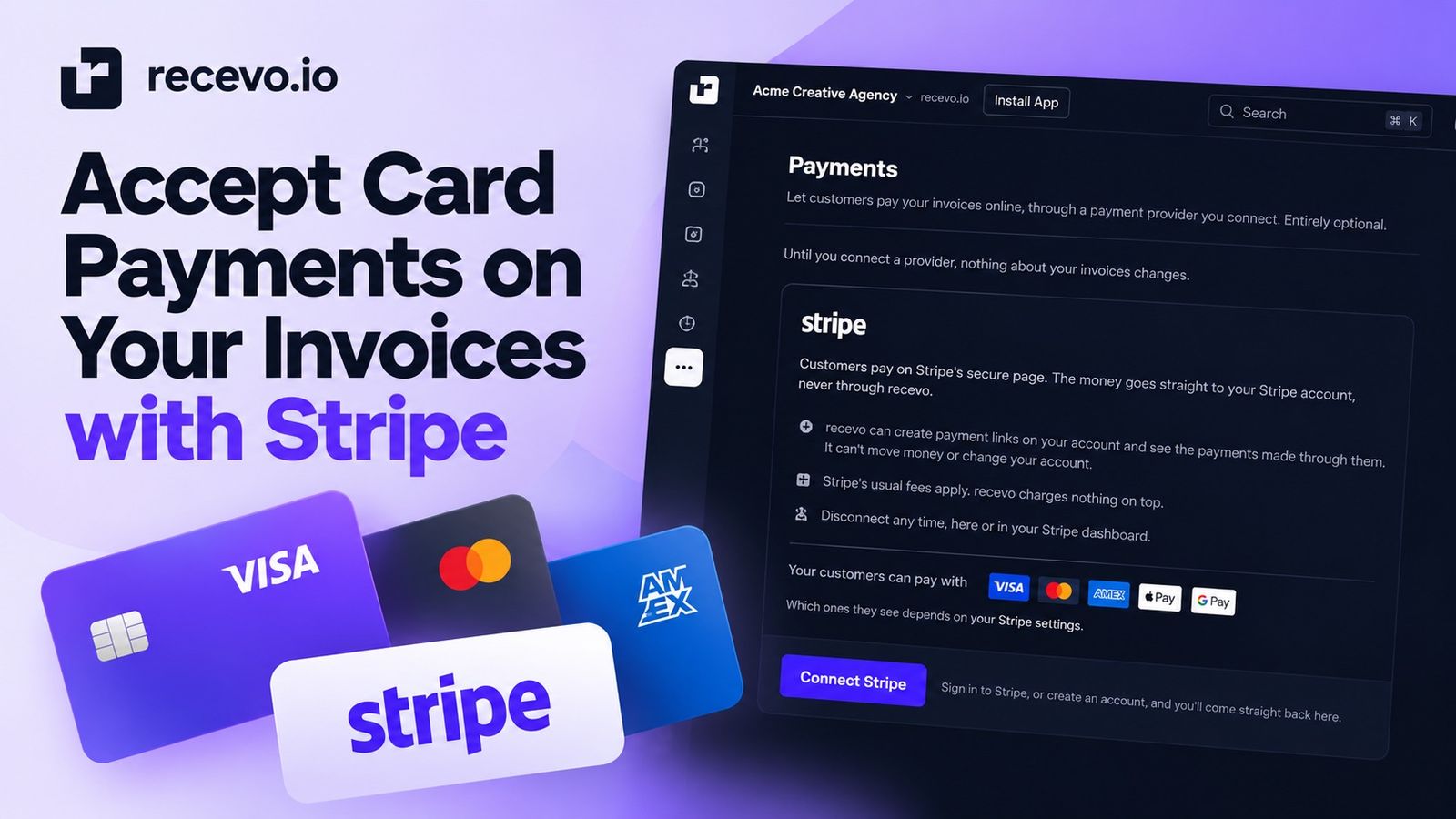
recevo.io invoices can now be paid online by card through Stripe. Connect your own Stripe account once, and eligible invoices can include a secure payment link and QR code while payments are recorded back against the invoice.
An invoice exists to get paid.
From 1 October 2026, customers can now pay eligible recevo.io invoices online by card using Stripe.
Connect your own Stripe account once and a secure payment option can be added when you share or download an invoice. Your customer chooses Pay Invoice, completes the payment on Stripe's checkout, and the payment is then recorded against the invoice in recevo.io.
The money goes directly into your own Stripe account.
recevo.io does not hold the payment, does not process the card details, and does not add a payment fee of its own.
It is designed to remove some of the friction between sending an invoice and getting it paid, without changing the private, no-signup approach behind recevo.io.
How Stripe payments work in recevo.io
There are three main steps.
1. Connect your Stripe account
Open the Payments page in recevo.io and choose Connect Stripe.
You will be taken to Stripe's own pages, where you can sign in to an existing Stripe account or create one.
You only need to connect once.
Connecting to Stripe is optional. Nothing changes about your existing invoicing workflow unless you choose to enable it.
2. Create and send your invoice as usual
Once Stripe is connected, you can carry on creating invoices in recevo.io in the same way as before.
For eligible invoices, the payment option is added when you share or download them.
Your customer can see a Pay Invoice button on a shared invoice.
If you send them the PDF instead, the invoice includes a Pay online section with a QR code that they can scan.
Payment links can also be included when you use Chase Reminders to draft a payment reminder.
That means your customer does not need to copy bank details from an invoice, open their banking app and manually enter a payment reference. They can go directly from the invoice to Stripe's checkout.
3. Your customer pays on Stripe
When the customer follows the payment link, the actual payment takes place on Stripe.
They can pay using Visa, Mastercard or American Express.
Apple Pay and Google Pay can also appear where you have enabled them in Stripe and the customer's device supports them.
Your customer does not need a Stripe account or a recevo.io account to make the payment.
Once the payment succeeds, the money belongs in your own Stripe account rather than passing through recevo.io.
Payments can now record themselves against the invoice
Taking a card payment is useful.
Having to come back afterwards and manually update the invoice is less useful.
So Stripe payments can also be recorded against the corresponding invoice in recevo.io.
If you have recevo.io open when a payment arrives, the payment should normally appear within seconds.
If the app is closed, the payment is picked up the next time you open it.
This means the invoice record can reflect what actually happened without you having to remember to mark each Stripe payment manually.
The Stripe receipt is also linked to the payment record, making it easier to move from the invoice to the corresponding transaction when you need to check it later.
Shared invoices can show when they have been paid
If your customer returns to the shared invoice after paying, it can update to show Paid in full.
That gives the customer a simple confirmation that the invoice no longer needs payment.
There is an important safeguard here: the shared invoice only updates this way if the invoice has not been edited since that particular version was shared.
You can also switch this behaviour off if you prefer.
Payment links always use the outstanding balance
The Stripe payment link is created for the balance currently due on the invoice.
Each link is intended for one payment.
So if an invoice no longer needs paying, the payment option should not remain available indefinitely.
Paid invoices lose their payment link.
Cancelled invoices lose their payment link too.
This helps avoid presenting a customer with a payment button for an invoice that should no longer be paid.
Amounts below Stripe's minimum charge do not receive a Stripe payment link.
Stripe processing fees can be recorded as expenses
Stripe charges its normal processing fee when a customer pays by card.
recevo.io does not add a fee of its own.
By default, recevo.io can also record Stripe's processing fee as an expense for you.
That gives you a clearer record of both sides of the transaction:
- the customer's invoice payment
- the Stripe fee associated with that payment
You can then keep the fee alongside your other business expense records rather than having to recreate it later from your Stripe history.
Stripe's own charges depend on the type of payment and other factors, so check Stripe's current pricing for the latest information rather than relying on a fixed figure.
Add payment links to multiple invoices
If you already have invoices waiting to be paid when you connect Stripe, you do not necessarily need to open and update them one by one.
Payment links can be created for multiple eligible invoices from the invoice list.
That can be useful if you have existing unpaid invoices and want to start giving those customers the option to pay by card.
You remain in control of how clients can pay
Connecting Stripe does not mean every invoice has to accept a Stripe payment.
You can switch Stripe payment links off:
- for an individual invoice
- across the entire workspace
If you already use your own payment link, such as a PayPal link, that still works too.
And if you decide you no longer want to use Stripe with recevo.io, you can disconnect it.
The integration is an additional payment option rather than a replacement for the way you already invoice clients.
What about invoice reminders?
Card payment links also work with Chase Reminders.
Chase Reminders in recevo.io spots invoices and quotes that need attention and drafts a follow-up email for you to send from your own email address.
Where an invoice has an active Stripe payment link, that link can be included in the reminder.
So instead of only reminding your customer that an invoice is overdue, you can give them a direct route to pay it at the same time.
recevo.io still does not send the email itself. You remain in control of what gets sent and when.
Your invoices still live in your browser
Adding Stripe payments does not change the local-first approach behind recevo.io.
Your normal invoice workspace still lives in your browser.
Connecting and paying happen on Stripe's pages. recevo.io never sees Stripe passwords, card numbers or bank details.
Stripe receives only the amount, currency, invoice number, business name and an internal reference.
Payment notices are encrypted for your devices before they are stored. recevo.io's server keeps nothing it can read and deletes them after 30 days.
Your invoices still live in your browser.
That means you can add online card payments without turning your invoice data into a centrally hosted recevo.io account.
Does recevo.io charge for card payments?
No fee is currently added by recevo.io when your customer pays an invoice through the Stripe integration.
Stripe still charges its standard processing fee for the payment.
The payment goes into your own Stripe account and Stripe deducts the relevant charges according to your Stripe pricing.
For current rates and payment-method charges, check Stripe's pricing page.
Where is Stripe invoice payment available?
The integration is available wherever Stripe supports your country and the currency used for the payment.
The exact payment methods your customer sees can depend on your Stripe configuration and their device.
Visa, Mastercard and American Express are supported for card payments.
Apple Pay and Google Pay can appear where you have enabled them in your Stripe account and the customer's device supports them.
Why add card payments to an invoice?
Bank transfer remains a perfectly good way to collect invoice payments.
But giving customers another way to pay can make the final step simpler.
Instead of finding your bank details, opening another app, entering the amount and copying an invoice number into the payment reference, a customer can follow the payment option directly from the invoice.
That is particularly useful when an invoice is opened on a phone.
And because the payment can then be recorded back against the invoice, there is less manual admin afterwards too.
You still keep control of the invoice.
Stripe handles the card payment.
The money goes to your Stripe account.
And recevo.io keeps the invoice record up to date.
Frequently asked questions
Can customers now pay recevo.io invoices by card?
Yes.
After you connect your own Stripe account, eligible recevo.io invoices can include a secure online payment option.
Customers can pay using Visa, Mastercard or American Express. Apple Pay and Google Pay can also be available where you have enabled them in Stripe and the customer's device supports them.
Does my customer need a Stripe account?
No.
The customer follows the payment link and pays through Stripe's checkout without needing their own Stripe account.
They do not need a recevo.io account either.
Does recevo.io handle my customer's card details?
No.
Connecting and paying happen on Stripe's pages. recevo.io never sees Stripe passwords, card numbers or bank details.
Does the money go through recevo.io?
No.
The payment goes directly into your own Stripe account. recevo.io never holds the money.
Does recevo.io charge a payment fee?
recevo.io currently adds no payment fee of its own.
Stripe charges its standard processing fee for the transaction.
Will an invoice automatically be marked as paid?
A successful Stripe payment can be recorded against the corresponding invoice.
If recevo.io is open, this normally happens within seconds. Otherwise, the payment is picked up when you next open the app.
What happens to Stripe's processing fee?
By default, the Stripe processing fee can be recorded automatically as an expense in recevo.io.
This can be switched off if you prefer to handle it another way.
Can I stop accepting card payments on one invoice?
Yes.
Stripe payment links can be disabled on individual invoices or across your whole workspace.
You can also disconnect Stripe whenever you want.
Give clients another way to pay
Private, no-signup invoicing does not have to mean sending customers elsewhere when it is time to pay.
With Stripe connected, eligible recevo.io invoices can now carry their own secure payment option, whether your customer opens the shared invoice, receives a PDF or follows a payment link from a reminder.
Stripe handles the card payment.
The money goes into your Stripe account.
And recevo.io can take care of recording the payment against the invoice.
Connect Stripe and start accepting card payments
No recevo.io signup. No invoice limits. No additional payment fee from recevo.io. Just private, browser-based invoicing with another straightforward way for your customers to pay.
Unlimited invoices, quotes & expenses · Free forever
See what is outstanding at a glance
Create the invoice, record each payment as it arrives, and let the status tell you who still owes what. Free, private, no sign-up.
Free forever · No account · No card · No watermark · Opens in a new tab
Unlike most free invoice tools:
- Unlimited invoices and quotes
- Branded PDFs with no watermark
- Works offline in your browser
- Your data never leaves your device
- Expenses and profit tracking included
- No account, no card, no premium tier

“Send a quote, convert it to an invoice in one click - tracking payments is so much easier.”