
How to Organise Receipts as a Freelancer
Receipts are easy to lose when they are scattered across emails, downloads, paper, screenshots, and supplier portals. Here’s a simple way freelancers can keep receipts and expense records organised.
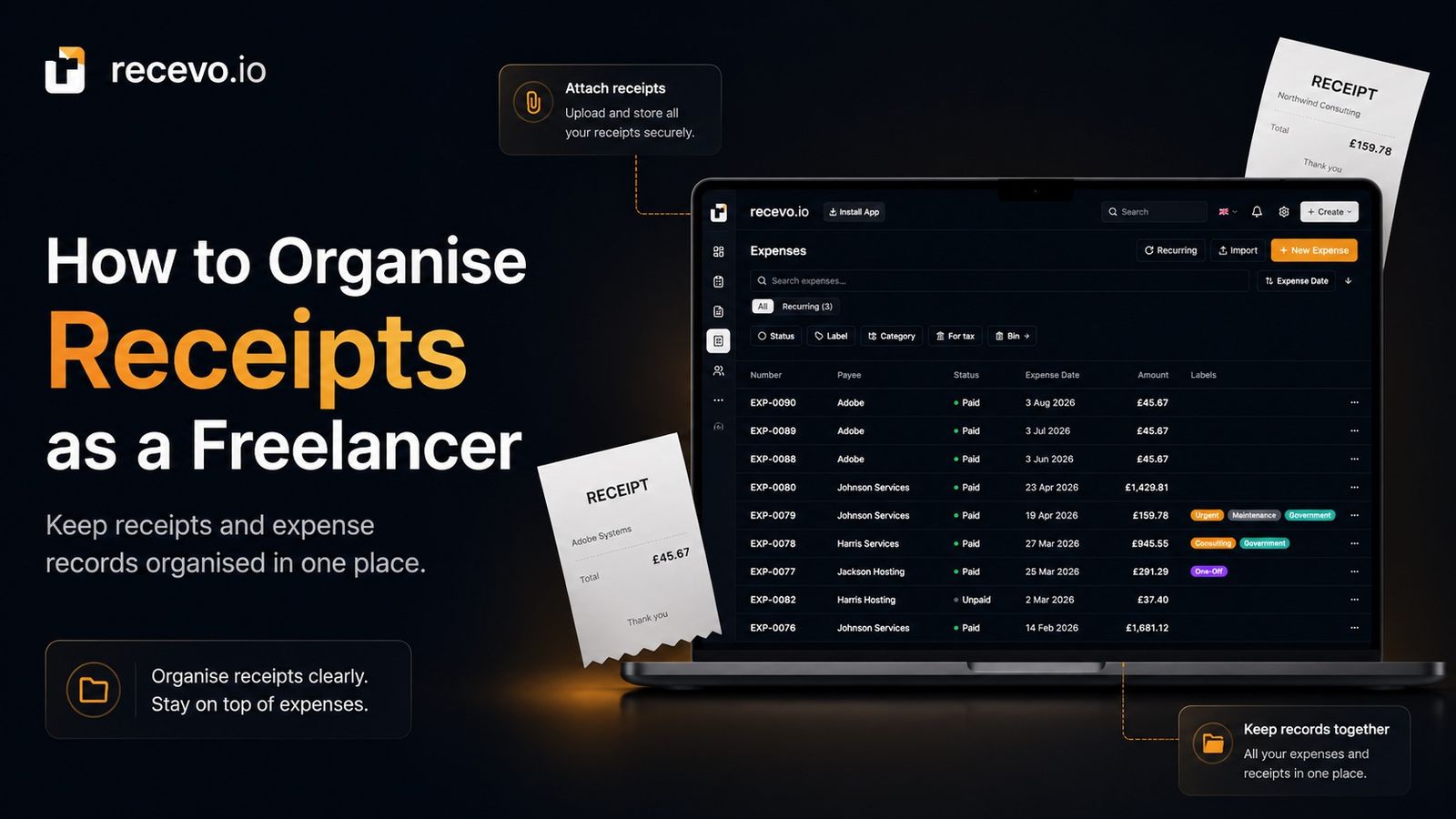
Receipts are easy to lose when you are freelancing.
Some arrive by email.
Some are paper receipts.
Some are PDFs in your downloads folder.
Some are screenshots.
Some live inside supplier portals.
Some are attached to card payments you barely remember making.
At first, this may not seem like a problem.
But when you need to review expenses, prepare records, check profit, or hand information to your accountant, scattered receipts can quickly become frustrating.
For freelancers, sole traders, consultants, creatives, tradespeople, and independent workers, receipt organisation does not need to be complicated.
The main goal is simple:
Keep the receipt close to the expense record it supports.
This guide explains how to organise receipts as a freelancer, what details to record, how to avoid common receipt mistakes, and how recevo.io can help you keep receipts, expenses, invoices, and records together in a private, browser-based workspace.
This is general business admin guidance, not tax or accounting advice. If you are unsure what records you need to keep, how long to keep them, or whether an expense is allowable, check official guidance or speak to an accountant.
Why receipt organisation matters
Receipts help explain your expenses.
An expense record says money was spent.
A receipt helps show what the money was spent on.
That matters because your future self, your accountant, or anyone reviewing your records may need to understand the purchase later.
Good receipt organisation helps you:
- find supporting records faster
- match receipts to expenses
- explain business purchases
- separate business and personal spending
- review subscriptions and recurring costs
- avoid relying on memory
- prepare cleaner accountant handoff
- understand your actual costs
- reduce year-end admin stress
A receipt folder by itself is better than nothing.
But the strongest system connects each receipt to the relevant expense record.
Why freelancers lose receipts
Freelancers often work across many tools, clients, and suppliers.
That means receipts rarely arrive in one neat place.
You may have receipts in:
- Gmail or another email inbox
- downloads folders
- phone photos
- paper wallets
- supplier dashboards
- app store accounts
- bank transaction screens
- PayPal or Stripe emails
- marketplace accounts
- travel booking apps
- cloud storage folders
- project folders
The issue is not usually laziness.
The issue is that receipts arrive while you are busy doing the work.
You buy something quickly, move on, and tell yourself you will sort it later.
Then “later” becomes three months later.
By that point, the receipt may be hard to find and the context may be gone.
What counts as a receipt?
A receipt is any supporting record that helps explain a purchase.
That might include:
- a paper receipt
- a PDF receipt
- an email receipt
- a supplier invoice
- a subscription invoice
- a screenshot
- a booking confirmation
- an order confirmation
- a payment confirmation
- a till receipt photo
- a download from a supplier portal
Different records may be useful in different situations.
For example, a bank statement may show that money left your account, but it may not explain exactly what was bought.
A receipt usually gives more useful detail.
What information should you record with each receipt?
A receipt is most useful when it is connected to a clear expense record.
For each receipt, try to record:
- date
- payee or supplier
- amount
- currency
- payment method
- description
- category
- project or client, if relevant
- whether it is business, personal, mixed, excluded, or uncertain
- notes
- attached receipt file
For example, this is not very helpful:
“£24.99 — receipt”
This is much better:
“£24.99, 4 August 2026, monthly design software subscription, paid by card, software category, receipt attached.”
The second version gives the receipt context.
That context is what makes the record useful later.
Attach receipts to expense records
The simplest receipt rule is this:
Do not keep receipts separate from the expense they explain.
If your expense list is in one place and your receipt files are somewhere else, you still have admin work to do later.
You may know an expense exists, but still need to search your inbox or downloads folder to prove what it was.
A better workflow is:
- Record the expense.
- Attach the receipt.
- Add a short note.
- Categorise it.
- Move on.
That way, the receipt and the expense record stay connected.
recevo.io helps with this by letting you record expenses and keep receipt attachments close to the expense record in your browser.
Capture receipts while the context is fresh
The best time to organise a receipt is when you receive it.
The second-best time is during a weekly review.
The worst time is months later, when you are staring at a vague transaction and trying to remember what happened.
A simple habit can help.
When you buy something for your business:
- save the receipt
- record the expense
- attach the receipt
- add the payee
- add a category
- write a short note
This does not need to take long.
The goal is to capture enough information before you forget the context.
Create a simple receipt routine
A good receipt system should be easy enough to keep using.
For many freelancers, a simple routine works best.
Daily capture
When a receipt arrives, save it immediately.
This could mean downloading a PDF, saving an email receipt, or taking a photo of a paper receipt.
Do not rely on finding it again later.
Weekly review
Once a week, review recent spending.
Check whether any receipts are missing, unclear, duplicated, or waiting to be attached to an expense.
This is also a good time to add notes while the purchase is still fresh.
Monthly tidy-up
Once a month, check that expenses, receipts, categories, and notes are in reasonable shape.
You do not need perfection.
You need records that make sense.
How to organise email receipts
Email receipts are common for freelancers.
They may come from software tools, marketplaces, domain providers, hosting companies, travel companies, office suppliers, or online services.
The problem is that inbox search is not a receipt system.
Email receipts can be deleted, buried, archived, or hard to match to a specific expense.
A better approach is to turn the email receipt into part of your expense record.
You can:
- download the receipt as a PDF
- save the email as a PDF
- take a screenshot if needed
- attach the file to the expense
- add a short note explaining the purchase
For example:
“Domain renewal for portfolio site, receipt from supplier email attached.”
This is much clearer than hoping you can find the email later.
How to organise paper receipts
Paper receipts are easy to lose, fade, or damage.
If you receive paper receipts, digitise them as soon as possible.
A simple approach is:
- Take a clear photo.
- Check the date, amount, and supplier are readable.
- Record the expense.
- Attach the photo to the expense record.
- Add a short note.
- Store or dispose of the paper copy according to your own record-keeping needs.
Do not leave paper receipts in bags, pockets, cars, notebooks, or desk piles.
That is how they disappear.
How to organise PDF receipts
PDF receipts are usually easier to manage than paper receipts, but they can still become messy.
Downloads folders fill up quickly.
File names may be vague, such as:
- receipt.pdf
- invoice.pdf
- download.pdf
- order-confirmation.pdf
Rename files if it helps you identify them.
A practical naming structure might be:
2026-08-04-supplier-name-software-subscription.pdf
or:
2026-08-04-client-project-materials-receipt.pdf
You do not need a perfect naming system if the receipt is attached to an expense record, but clear names can still help.
How to organise screenshots
Sometimes a screenshot is the only practical record you have.
For example, a purchase confirmation screen, app store receipt, payment confirmation, or supplier portal view.
Screenshots can be useful, but they need context.
A screenshot with no note may be confusing later.
When using screenshots as receipts, make sure the record includes:
- date
- supplier
- amount
- what was purchased
- why it relates to the business
- any project or client context
Attach the screenshot to the expense record and add a short description.
How to organise supplier invoices
Some receipts are really supplier invoices.
For example, a software company may send you a monthly invoice for your subscription.
A supplier invoice is still useful as supporting evidence for your expense record.
Record it like any other expense:
- supplier
- invoice date
- amount
- category
- payment method
- receipt or invoice attachment
- note
If the supplier invoice relates to a recurring cost, mark that clearly.
That makes future reviews easier.
Organise receipts by payee
Payees are useful because freelancers often buy from the same suppliers repeatedly.
For example:
- software providers
- hosting companies
- domain registrars
- travel providers
- marketplaces
- office suppliers
- insurance providers
- subcontractors
- professional services
- materials suppliers
Tracking payees helps you see repeated spending.
It also makes it easier to understand what a receipt relates to later.
recevo.io includes payee records for expenses, so you can keep supplier details organised alongside your receipt and expense records.
Organise receipts by category
Categories help turn a pile of receipts into useful information.
Common freelance receipt categories might include:
- software
- subscriptions
- hosting
- domain names
- equipment
- materials
- travel
- postage
- office supplies
- advertising
- insurance
- professional services
- training
- banking fees
- client costs
- other
The right categories depend on your work.
A designer, developer, photographer, tutor, tradesperson, and consultant may all need slightly different categories.
Keep categories practical.
If they are too detailed, you may stop using them.
If they are too broad, they may not tell you much.
Use labels for projects and clients
Categories describe the type of expense.
Labels can describe the context.
For example:
- Client Smith
- Website project
- Training
- Reimbursable
- To review
- Ask accountant
- Equipment upgrade
- Conference
- Portfolio site
- Materials
Labels are useful when one category is not enough.
For example, “travel” tells you the type of expense.
“Client Smith” tells you why it happened.
recevo.io supports categories and labels, helping you organise expenses in a way that matches your freelance workflow.
Add notes while you still remember
Notes are underrated.
A receipt might show the supplier and amount, but not the reason for the purchase.
A short note can explain the business context.
For example:
- “Train to client meeting”
- “Replacement cable for client installation”
- “Software subscription for design work”
- “Materials for Jones project”
- “Domain renewal for business website”
- “Ask accountant about mixed-use treatment”
- “Client reimbursed separately”
These notes do not need to be formal.
They just need to help you understand the record later.
Mark uncertain receipts clearly
Not every receipt is obvious.
Some expenses may be:
- business
- personal
- mixed-use
- reimbursable
- excluded
- uncertain
- needing accountant review
Do not hide uncertainty.
Mark it clearly.
For example:
“Mixed personal/business use — ask accountant.”
or:
“Possibly client reimbursable — check project agreement.”
This is much better than pretending every receipt is simple.
recevo.io can help you organise and classify records, but it does not decide what is tax-deductible for you.
Keep recurring receipts under control
Recurring receipts are easy to miss.
They arrive every month, quarter, or year, often by email or card payment.
Examples include:
- software subscriptions
- hosting
- domain renewals
- insurance
- phone plans
- internet
- professional memberships
- accounting support
- storage tools
- design tools
- productivity apps
Because they repeat, they can become background noise.
But recurring costs add up.
A £12 monthly subscription is £144 per year.
A £49 monthly tool is £588 per year.
A £99 monthly service is £1,188 per year.
Receipt organisation helps you see those costs clearly.
recevo.io supports recurring expense templates, but it does not silently post recurring expenses without your review. You stay in control of what gets confirmed.
Receipts and reimbursable expenses
Some receipts relate to costs you expect the client to reimburse.
For example:
- travel
- materials
- postage
- printing
- stock
- third-party services
- licences
- subcontractor costs
These receipts need careful tracking.
You need to know:
- what was bought
- which client or project it relates to
- whether the client agreed to it
- whether it has been invoiced
- whether it has been paid back
- whether the receipt is attached
Use a clear label such as “Reimbursable” or “Client cost”.
This helps you avoid forgetting to bill for small expenses.
Receipts and accountant handoff
Your accountant does not just need totals.
They may need context.
A clean receipt system makes handoff easier because records are easier to understand.
Instead of sending scattered files, screenshots, folders, and half-complete notes, you can provide more organised information.
Helpful records include:
- expenses
- receipts
- payees
- categories
- notes
- invoice records
- payment records
- CSV exports
- attachments
recevo.io helps prepare cleaner records for accountant handoff, including invoice, expense, receipt, and export workflows.
It does not replace your accountant.
It helps you avoid handing over a mess.
Receipts and profit visibility
Receipts are not only useful for tax admin.
They also help you understand profit.
If you invoice £2,000 for a project, that does not mean you made £2,000 in profit.
You may have spent money on:
- materials
- software
- travel
- subcontractors
- tools
- printing
- equipment
- postage
- project-specific costs
When receipts are organised, your expenses are easier to trust.
When expenses are easier to trust, your profit view is more useful.
recevo.io includes dashboard and profit-and-loss style views to help you understand income, expenses, and estimated profit before tax.
Those views are for visibility and preparation, not tax advice.
What receipt organisation is not
Receipt organisation is not the same as accounting advice.
It is not the same as filing a tax return.
It is not the same as automatically deciding what is allowable.
It is not the same as connecting bank feeds, scanning your inbox, or importing supplier invoices automatically.
Receipt organisation is the habit of keeping useful records together.
recevo.io helps you do that manually.
You add the expense.
You attach the receipt.
You choose the category.
You add the note.
You review anything uncertain.
That keeps the workflow simple, private, and under your control.
Does recevo.io automatically import receipts?
No.
recevo.io does not automatically import receipts from your inbox, bank account, card feed, payment processor, or supplier portals.
You add and manage receipt records yourself.
This is part of the product’s simpler, more private model.
For freelancers who want automatic bank feeds, automatic receipt capture, or full bookkeeping automation, traditional accounting software may be a better fit.
For freelancers who want private, no-signup invoicing with manual expense and receipt organisation, recevo.io is designed for that workflow.
How recevo.io helps organise receipts
recevo.io is private, no-signup invoicing for independent workers.
It helps you create invoices and quotes, record payments, track expenses, attach receipts, organise payees, use categories and labels, and prepare cleaner records.
For receipts, recevo.io can help you:
- record expense details
- attach receipts to expenses
- organise payees
- use categories
- use labels
- add private notes
- track recurring expense templates
- keep receipts near expense records
- review income and expenses together
- export records for accountant handoff
The important word is “organise”.
recevo.io gives you a structured place to keep receipts and expense records, but you remain responsible for adding and managing the information.
Why browser-based receipt organisation matters
recevo.io is browser-based by design.
Your normal workspace lives in your browser, not in a central recevo.io invoice database.
That is a deliberate privacy and ownership choice.
It means you can keep invoices, quotes, expense records, payment records, notes, and receipts in a local-first workspace instead of handing your normal business admin to a central cloud database.
There is an important trade-off.
If browser data is cleared, your local workspace can be lost unless you have a backup.
recevo.io supports manual JSON Backup & Restore. Backup files are plain JSON for portability and transparency, so they may contain sensitive business data and should be stored securely.
Optional Encrypted Cloud Backup is also available as an off-device safety net. It is opt-in, off by default, and is not real-time cloud sync or team collaboration.
Is recevo.io accounting software?
No.
recevo.io is an invoicing-first tool for independent workers.
It includes useful depth around quotes, expenses, payment tracking, live P&L visibility, categories, tax classification, receipt attachments, and accountant-ready exports, but it is not accounting software, tax filing software, payroll software, or a replacement for your accountant.
The goal is simpler:
Create invoices. Track payments. Record expenses. Attach receipts. Keep clearer records.
Common receipt organisation mistakes
Keeping receipts only in your inbox
Your inbox is not a reliable receipt system.
Email receipts can be deleted, archived, buried, or hard to match later.
Save or attach receipts to expense records where possible.
Keeping paper receipts in piles
Paper receipts are easy to lose and can fade over time.
Digitise them while they are still readable.
Not recording context
A receipt may show what was bought, but not why.
Add a short note explaining the business reason.
Using vague categories
Categories like “misc” or “other” can become dumping grounds.
Use practical categories where possible.
Forgetting recurring receipts
Monthly and annual subscriptions can add up.
Review recurring receipts regularly.
Mixing personal and business receipts
If a receipt is personal, mixed, excluded, or uncertain, mark it clearly.
Do not rely on memory.
Not attaching the receipt
An expense record without the receipt may still leave you searching later.
Attach the receipt to the expense record when you can.
A simple receipt organisation workflow
Here is a practical workflow freelancers can use.
1. Capture the receipt
Download the PDF, save the email, take a photo, or capture the screenshot.
2. Record the expense
Add the date, payee, amount, currency, and description.
3. Attach the receipt
Keep the receipt close to the expense record.
4. Add a category
Choose a simple category such as software, travel, equipment, materials, hosting, insurance, or office supplies.
5. Add labels if useful
Use labels for projects, clients, reimbursable costs, or items to review.
6. Write a short note
Explain the business context while you still remember.
7. Mark uncertain items
If something is mixed, personal, excluded, or unclear, mark it for review.
8. Review receipts regularly
Set a weekly or monthly routine so receipts do not pile up.
9. Export records when needed
When it is time for accountant handoff or admin review, export the relevant records.
Frequently asked questions
How should freelancers organise receipts?
Freelancers should organise receipts by attaching them to expense records wherever possible. Each expense record should include the date, payee, amount, category, description, notes, and receipt file.
Do freelancers need to keep paper receipts?
Rules vary depending on where you are and your situation. As a general habit, freelancers should keep supporting records for business expenses. If you are unsure what is required, check official guidance or ask an accountant.
Is a bank statement enough for freelance expenses?
A bank statement can show that money was paid, but it may not explain what was bought or why. A receipt usually provides more useful detail.
What should I do with email receipts?
Download, save, or attach email receipts to the relevant expense record. Do not rely only on inbox search.
How should I organise recurring receipts?
Track recurring receipts separately or label them clearly. Review subscriptions, renewals, hosting, insurance, and software tools regularly so you know what you are still paying for.
Can recevo.io organise receipts?
Yes. recevo.io helps you record expenses, attach receipts, organise payees, use categories and labels, add notes, and keep receipt records close to invoices and expenses.
Does recevo.io automatically import receipts?
No. recevo.io does not automatically import receipts from your inbox, bank account, card feed, or supplier portals.
You add and manage receipt records yourself.
Does recevo.io tell me whether a receipt is tax-deductible?
No. recevo.io helps you organise receipt and expense records, but it does not provide tax advice or decide what is tax-deductible.
If you are unsure how to treat an expense, check official guidance or speak to an accountant.
Is recevo.io accounting software?
No. recevo.io is an invoicing-first tool for independent workers. It includes expense and receipt organisation, but it is not accounting software, tax filing software, payroll software, or a replacement for your accountant.
Do I need an account to use recevo.io?
No. Open the app and start invoicing — no account required.
recevo.io does not require an email address, password, trial, or subscription to use the core no-signup app.
Organise your freelance receipts more clearly
Receipt organisation does not need to be complicated.
Capture the receipt. Record the expense. Attach the file. Add a category. Write a note. Review regularly.
The important thing is to keep receipts and expense records together before the details disappear.
With recevo.io, you can create invoices, record payments, track expenses, attach receipts, organise payees, use categories and labels, and prepare cleaner records in your browser.
Start here:
Start invoicing and organising expenses
No signup. No subscription. No invoice limits. Just private, browser-based invoicing for independent workers.
Unlimited invoices, quotes & expenses · Free forever
Keep every expense next to the invoice it belongs to
Track one-off and recurring costs, attach receipts, and export an Accountant Pack when tax time comes. Free forever, no account needed.
Free forever · No account · No card · No watermark · Opens in a new tab
Unlike most free invoice tools:
- Unlimited invoices and quotes
- Branded PDFs with no watermark
- Works offline in your browser
- Your data never leaves your device
- Expenses and profit tracking included
- No account, no card, no premium tier

“I log every expense and see my net profit update in real time.”