
How to Invoice for Hourly Work as a Freelancer
Billing by the hour sounds simple, but the invoice still needs to be clear. Here’s how freelancers can show hours, rates, descriptions, dates, totals, and payment terms professionally.
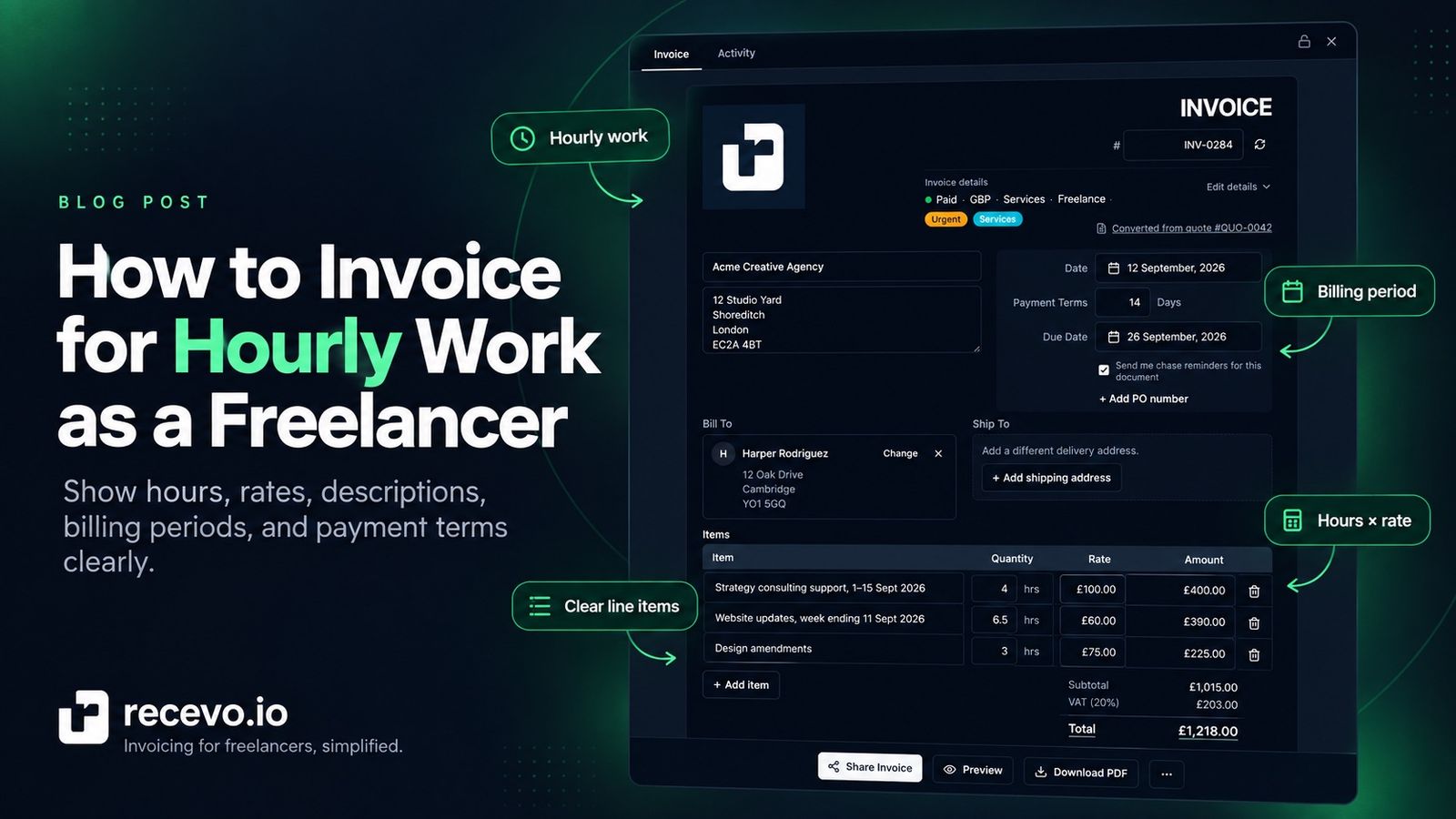
Hourly freelance work sounds easy to invoice.
You worked a number of hours.
You charge an hourly rate.
The client pays the total.
But the invoice still needs to be clear.
If the invoice only says “freelance work” or “hours”, the client may need to ask what the time was for. If the hours are not shown properly, they may need to check the calculation. If the billing period is missing, they may not know which week or month the invoice covers.
A good hourly invoice makes the work easy to understand and easy to pay.
This guide explains how to invoice for hourly freelance work, what to include, how to write hourly line items, how to show your rate and hours, and how recevo.io can help you create clear hourly invoices in your browser.
What is an hourly invoice?
An hourly invoice is an invoice where the total is based on time worked.
The basic structure is:
hours worked × hourly rate = amount due
For example:
4 hours × £50 per hour = £200
Hourly invoicing is common for:
- consulting
- design support
- development work
- copywriting
- virtual assistance
- admin support
- coaching
- repairs
- maintenance
- project support
- training
- technical help
- ad hoc freelance work
Hourly invoices are useful when the amount of work can vary, or when the client has agreed to pay for your time rather than a fixed deliverable.
What should an hourly invoice include?
An hourly invoice should include the normal invoice details, plus enough information to explain the time worked.
Include:
- your business details
- client details
- invoice number
- invoice date
- payment due date
- description of the work
- billing period or work dates
- number of hours
- hourly rate
- subtotal
- tax, if relevant
- total amount due
- payment terms
- payment instructions
- notes, if needed
The most important parts for hourly billing are the description, hours, rate, and billing period.
Those are the details that help the client understand the charge.
How to show hours and rate on an invoice
The clearest way to show hourly work is to use line items.
For example:
Description: Consulting support
Quantity: 4
Unit price: £75
Total: £300
Or:
Description: Website updates, 1–7 September 2026
Quantity: 6.5
Unit price: £60
Total: £390
This makes the calculation visible.
The client can see how many hours were billed, what rate was used, and how the total was reached.
With recevo.io, you can create invoice line items with quantities and prices, which works well for hourly billing. You enter the hours and rate yourself, then the invoice total is calculated from the line items.
Hourly invoice description examples
The description should explain what the time was spent on.
Avoid vague wording like:
“Work”
“Freelance services”
“Hours”
“Support”
Those descriptions may be too unclear, especially if the invoice goes to a finance team or is reviewed months later.
Better examples include:
“Consulting support — 4 hours”
“Website updates — 6.5 hours”
“Design amendments — 3 hours”
“Copywriting revisions — 2 hours”
“Admin support for August 2026 — 8 hours”
“Development support, week ending 11 September 2026 — 5 hours”
“Client training session and follow-up notes — 2.5 hours”
“On-site repair work — 4 hours”
A good description should tell the client what the hours relate to.
Include the billing period
Hourly invoices are much clearer when they include the period covered.
For example:
“Consulting support for 1–15 September 2026”
“Development support, week ending 11 September 2026”
“Virtual assistant support for August 2026”
“Design amendments completed on 9 September 2026”
This helps the client match the invoice to the work.
It also helps you later if you need to review what was billed and when.
If the work happened on a single date, include that date.
If the work happened across a week or month, include the date range.
Should you list each task separately?
Sometimes one line item is enough.
For example:
“Consulting support for September 2026 — 6 hours”
That may be fine if the client already understands the work.
But if the work covered different tasks, separate line items may be clearer.
For example:
“Strategy call and preparation — 2 hours”
“Follow-up research and notes — 3 hours”
“Implementation support — 4 hours”
Separate line items can help when:
- the work covers different services
- the client wants detail
- different rates apply
- some work is billable and some is not
- the invoice needs to match a timesheet
- the project has multiple stages
Do not overcomplicate the invoice, though.
The goal is clarity, not a full diary of your day.
When to attach a timesheet
Some clients want a timesheet or work log with hourly invoices.
Others do not.
A timesheet can be useful when:
- the client requires one
- the invoice covers many small tasks
- the work is ongoing
- the total number of hours is high
- several people worked on the project
- the client needs internal approval
- you want to reduce questions
A simple timesheet might include:
- date
- task
- hours
- notes
- total hours
You can reference the timesheet in the invoice description:
“Development support for September 2026 — 12 hours, timesheet supplied separately.”
recevo.io helps you create the invoice itself, but it does not automatically track your time. If you use a separate time tracker or timesheet, keep that record alongside your invoice workflow.
Agree the hourly rate before invoicing
Hourly invoices work best when the rate has already been agreed.
Do not wait until the invoice arrives to tell the client your rate.
Agree the rate in:
- a quote
- an estimate
- a proposal
- an email
- a contract
- a project confirmation message
For example:
“My hourly rate for additional support is £60 per hour.”
or:
“Development support will be billed at £75 per hour, rounded to the nearest 15 minutes.”
Clear agreement makes the invoice easier to approve later.
recevo.io supports quotes and estimates, so you can set out hourly rates before work begins and then create the invoice when payment is due.
Decide how you round time
If you bill hourly, decide how time is rounded.
Common options include:
- exact time
- nearest 5 minutes
- nearest 10 minutes
- nearest 15 minutes
- nearest 30 minutes
- minimum one-hour charge
- half-day or full-day blocks
For example, if you work 1 hour and 12 minutes, do you bill 1.2 hours, 1.25 hours, or 1.5 hours?
There is no single correct answer, but the client should know your approach.
Example wording:
“Time is billed in 15-minute increments.”
or:
“Minimum charge: 1 hour.”
or:
“Hourly support is rounded to the nearest 15 minutes.”
If rounding affects the invoice total, make that clear before work starts.
How to invoice different hourly rates
Sometimes different work has different rates.
For example:
- consulting: £100/hour
- admin support: £40/hour
- development: £75/hour
- urgent support: £95/hour
- on-site work: £85/hour
If different rates apply, use separate line items.
For example:
“Consulting session — 2 hours at £100/hour”
“Implementation support — 4 hours at £75/hour”
“Admin follow-up — 1 hour at £40/hour”
This avoids confusion.
Do not combine different rates into one vague line item unless the client already has a detailed breakdown elsewhere.
How to invoice hourly work with expenses
Hourly work sometimes includes expenses.
For example:
- travel
- materials
- postage
- parking
- software
- equipment hire
- third-party costs
If the client has agreed to reimburse expenses, list them separately from your hours.
For example:
“Consulting support — 4 hours”
“Train travel for client workshop”
“Printed workshop materials”
This makes the invoice easier to understand.
It also separates time-based charges from reimbursable costs.
recevo.io can help you create invoice line items and record expenses, but it does not automatically decide which expenses should be charged to a client. You choose what belongs on the invoice.
How to invoice hourly work with a deposit
Some hourly projects start with a deposit or upfront payment.
For example:
- a block of 10 prepaid hours
- a deposit before work starts
- a minimum booking fee
- a first-stage payment
- an advance payment for a support package
Example line item:
“Prepaid support block — 10 hours”
or:
“Deposit for hourly consulting support”
or:
“Initial payment for development support”
When work is later completed, make sure your records show what has already been paid and what remains due.
recevo.io lets you manually record payments and refunds against invoices, which can help you track deposits and balances.
How to invoice for part-hours
Freelancers often work partial hours.
For example:
- 1.5 hours
- 2.25 hours
- 3.75 hours
- 6.5 hours
That is normal.
Use the quantity field to show the number of hours.
For example:
Description: Copywriting revisions
Quantity: 2.5
Unit price: £50
Total: £125
Just make sure your rounding approach is consistent and agreed where necessary.
How often should freelancers send hourly invoices?
The right invoicing rhythm depends on the client and the work.
Common options include:
- after each session
- weekly
- fortnightly
- monthly
- at project milestones
- after a support block is used
- when the total reaches a certain amount
For small pieces of work, invoicing immediately may be simplest.
For ongoing support, weekly or monthly invoicing may be easier.
The main thing is to agree the rhythm before work begins.
Example wording:
“Hourly support will be invoiced weekly.”
or:
“Hourly work will be invoiced at the end of each month.”
or:
“Support will be invoiced once the agreed block of hours is complete.”
This article is about manually created invoices. It does not mean recevo.io automatically creates or sends recurring invoices.
Payment terms for hourly invoices
Hourly invoices still need clear payment terms.
Include:
- due date
- payment method
- payment reference
- any late-payment wording, if relevant
- who to contact with questions
Example wording:
“Payment due within 14 days. Please use the invoice number as the payment reference.”
or:
“Payment due by 30 September 2026.”
A due date is clearer than only saying “14 days”.
recevo.io lets you set issue dates, due dates, payment terms, notes, and payment instructions on invoices.
Hourly invoice examples
Here are some practical examples.
Consulting example
Description: Strategy consulting support, 1–15 September 2026
Quantity: 4
Unit price: £100
Total: £400
Design example
Description: Design amendments for landing page
Quantity: 3.5
Unit price: £60
Total: £210
Development example
Description: Website bug fixes and maintenance, week ending 11 September 2026
Quantity: 6
Unit price: £75
Total: £450
Copywriting example
Description: Copywriting revisions for services page
Quantity: 2
Unit price: £50
Total: £100
Virtual assistant example
Description: Admin support for August 2026
Quantity: 8
Unit price: £35
Total: £280
Trades example
Description: On-site repair work, 9 September 2026
Quantity: 4
Unit price: £55
Total: £220
Training example
Description: Client training session and follow-up notes
Quantity: 2.5
Unit price: £80
Total: £200
These examples are simple, but they show the main idea: clear description, visible hours, visible rate, clear total.
Common hourly invoicing mistakes
Using vague descriptions
“Work completed” is usually too vague.
Use wording that explains the service, project, or period.
Forgetting the billing period
If the invoice covers a week or month, say so.
This helps the client match the invoice to the work.
Hiding the hourly rate
If the client is paying by the hour, show the rate clearly unless there is a specific reason not to.
Combining too much into one line
One line item may be fine for simple work, but complex work may need a breakdown.
Not agreeing the rate first
Hourly rates should be agreed before the invoice is sent.
Surprising the client with a rate later can delay payment.
Not keeping a time record
If the client asks how the hours were calculated, you need a record.
Use a time tracker, notes, calendar, or timesheet if needed.
Forgetting payment terms
An hourly invoice still needs a due date and payment instructions.
Not recording payment
Creating the invoice is not the end of the workflow.
Once payment arrives, record it.
recevo.io lets you manually record invoice payments and refunds, so your invoice history stays clearer.
How recevo.io helps with hourly invoices
recevo.io is private, no-signup invoicing for independent workers.
It helps freelancers, sole traders, consultants, tradespeople, creatives, and small businesses create professional invoices in the browser without creating an account.
For hourly invoicing, recevo.io can help you:
- create invoice line items
- enter hours as quantities
- enter hourly rates as unit prices
- add clear descriptions
- set invoice numbers
- set issue dates and due dates
- add payment terms
- add notes
- export professional PDFs
- share invoices with encrypted read-only links
- record payments and refunds manually
- clone invoices for similar work
- keep invoice history organised
You stay in control of the wording, hours, rates, and payment records.
recevo.io does not automatically track your time, decide what to bill, or send invoices for you.
Create quotes for hourly work
If the hourly work is agreed before it starts, you can use a quote or estimate to set expectations.
For example, your quote might say:
“Development support at £75 per hour, estimated 4–6 hours.”
or:
“Consulting support billed at £100 per hour, invoiced weekly.”
or:
“Initial block of 10 support hours at £60 per hour.”
With recevo.io, you can create quotes and estimates, then convert accepted quotes into invoices when it is time to bill.
This helps keep the agreed rate and work description consistent.
Keep internal notes separate
Sometimes you need notes that should not appear on the invoice.
For example:
- “Client approved 2 extra hours by email”
- “Round time to nearest 15 minutes”
- “Do not bill discovery call”
- “Apply agreed discount”
- “Check timesheet before sending”
- “Follow up next week if unpaid”
recevo.io supports private notes, so you can keep internal context separate from the client-facing invoice PDF.
Your normal workspace lives in your browser
recevo.io is browser-based by design.
Your normal workspace lives in your browser, not in a central recevo.io invoice database.
That is a deliberate privacy and ownership choice.
It means you can create invoices, quotes, payment records, expenses, notes, and receipt records without handing your normal workspace to a central cloud database.
There is an important trade-off.
If browser data is cleared, your local workspace can be lost unless you have a backup.
recevo.io supports manual JSON Backup & Restore. Backup files are plain JSON for portability and transparency, so they may contain sensitive business data and should be stored securely.
Optional Encrypted Cloud Backup is also available as an off-device safety net. It is opt-in, off by default, and is not real-time cloud sync or team collaboration.
Is recevo.io time tracking software?
No.
recevo.io is not time tracking software.
It does not record your working hours automatically, run timers, monitor activity, or generate timesheets.
It is an invoicing-first tool that can help you turn your recorded hours into a clear invoice.
If you track time elsewhere, you can use those hours when creating your invoice in recevo.io.
Is recevo.io accounting software?
No.
recevo.io is an invoicing-first tool for independent workers.
It includes useful depth around quotes, expenses, payment tracking, live P&L visibility, categories, tax classification, receipt attachments, and accountant-ready exports, but it is not accounting software, tax filing software, payroll software, time tracking software, or a replacement for your accountant.
The goal is simpler:
Record the work. Create the invoice. Send the PDF. Track payment.
Frequently asked questions
How do I invoice hourly work as a freelancer?
Create an invoice with a clear description of the work, the billing period, the number of hours, your hourly rate, and the total due.
For example:
“Consulting support for 1–15 September 2026 — 4 hours at £100/hour.”
Should I show hours on an invoice?
Yes, if the client is paying by the hour.
Showing hours and rate makes the invoice easier to understand and easier to approve.
Should I include a timesheet with an hourly invoice?
Include a timesheet if the client requires one, if the invoice covers many tasks, or if the number of hours needs extra explanation.
For simple hourly work, clear invoice line items may be enough.
How should I describe hourly work on an invoice?
Use a clear description that explains the service, project, and time period.
For example:
“Website maintenance for August 2026 — 6 hours”
is clearer than:
“Web work.”
Can I invoice for part-hours?
Yes. You can invoice for part-hours such as 1.5, 2.25, or 6.5 hours.
Make sure your rounding approach is clear and consistent.
Should I invoice hourly work weekly or monthly?
That depends on your agreement with the client.
Weekly invoices can help with cash flow. Monthly invoices can reduce admin. For small tasks, invoicing after the work is complete may be simpler.
Can recevo.io create hourly invoices?
Yes. recevo.io lets you create invoice line items with quantities and prices, so you can use hours as the quantity and your hourly rate as the unit price.
You enter the hours and rate yourself.
Does recevo.io track time automatically?
No. recevo.io does not automatically track time, run timers, or create timesheets.
It helps you create invoices from the hours you choose to bill.
Does recevo.io send invoices automatically?
No. recevo.io helps you create invoices, export PDFs, and share invoices, but you stay in control of sending them.
Do I need an account to use recevo.io?
No. Open the app and start invoicing — no account required.
recevo.io does not require an email address, password, trial, or subscription to use the core no-signup app.
Create clearer hourly invoices
Hourly invoices are easier to pay when the work is easy to understand.
Show the hours.
Show the rate.
Describe the work clearly.
Include the billing period.
Add payment terms.
Keep a record of what has been paid.
With recevo.io, you can create professional hourly invoices, add clear line items, export PDFs, share invoices, record payments, and keep your invoicing workflow organised in your browser.
Start here:
Create your first hourly invoice
No signup. No subscription. No invoice limits. Just private, browser-based invoicing for independent workers.
Unlimited invoices, quotes & expenses · Free forever
Send your next invoice from recevo.io, and every one after it, free
Create the invoice, download a branded PDF or share a secure read-only link, then record the payment when it lands. Free forever, no account needed.
Free forever · No account · No card · No watermark · Opens in a new tab
Unlike most free invoice tools:
- Unlimited invoices and quotes
- Branded PDFs with no watermark
- Works offline in your browser
- Your data never leaves your device
- Expenses and profit tracking included
- No account, no card, no premium tier

“I set up my branding once - now everything I send looks professional.”