
How to Create an Invoice Without Signing Up or Creating an Account
Need to send an invoice without creating another account? recevo.io lets freelancers, sole traders, and independent workers create professional invoices in the browser with no signup, no subscription, and no central cloud invoice database. Create an invoice, export a PDF, track payment, and keep your business data under your control.
Sometimes you do not want another account.
You just need to send an invoice.
Maybe a client has finally approved the work. Maybe you have finished a job on-site. Maybe you are freelancing on the side and only need to invoice occasionally. Whatever the reason, the last thing you want is to create a login, verify an email address, start a free trial, or discover that PDF export is locked behind a paid plan.
That is where a no-signup invoice generator can help.
With recevo.io, you can create a professional invoice directly in your browser without creating an account. No email address. No password. No subscription. No onboarding wall.
Open the app, create your invoice, export a PDF, and get on with your work.
Why create an invoice without signing up?
Most online tools ask you to create an account before you can do anything useful.
For some software, that makes sense. But for invoicing, it can feel unnecessary. If you are a freelancer, sole trader, consultant, tradesperson, designer, developer, writer, tutor, photographer, or side hustler, you may just need a fast way to bill a client.
A no-signup invoice tool is useful when you want to:
create an invoice quickly,
avoid another monthly subscription,
send a one-off invoice,
test an invoice generator before committing to it,
keep your client and invoice data out of yet another SaaS account,
or invoice from a device where you do not want to log in.
recevo.io is built around that idea: private, no-signup invoicing for independent workers.
What should an invoice include?
Before creating your invoice, it helps to know what information you need.
A professional invoice usually includes:
Your business details
Your name or business name, address, contact details, and any relevant tax or registration information.
Your client’s details
The client’s name, company name, billing address, and contact information.
Invoice number
A unique reference number so both you and your client can identify the invoice.
Invoice date
The date the invoice is issued.
Payment due date
The date payment should be made by.
Line items
A clear list of the products, services, hours, days, or project work being charged for.
Prices and quantities
The rate, quantity, and total for each line item.
Tax, discounts, or shipping
Any tax, discount, or additional charges that apply.
Total amount due
The final amount the client needs to pay.
Payment terms
How the client should pay you, when payment is due, and any notes about late payment or bank details.
Notes
Any extra context, such as a thank-you message, project reference, purchase order number, or delivery details.
recevo.io gives you structured fields for these details, so you are not trying to build an invoice manually in a blank document or spreadsheet.
How to create an invoice without signing up
Here is the simple version.
Go to:
Then create your invoice in the browser.
You do not need to create an account first. Your workspace is created locally in your browser, so you can start building your invoice straight away.
The basic process looks like this.
Step 1: Open the invoice app
Open recevo.io in your browser and start from the invoice builder.
There is no login screen, no email verification, and no trial signup. The app is designed so you can get straight to the invoice.
This is especially useful if you are in a hurry. You might be billing a client at the end of a job, sending a first invoice for freelance work, or replacing a spreadsheet template that has become awkward to manage.
Step 2: Add your business details
Enter your business name, address, and contact information.
These details appear on your invoice so your client knows who the invoice is from. If you are a sole trader or freelancer, this might simply be your own name and contact details. If you operate under a business name, you can use that instead.
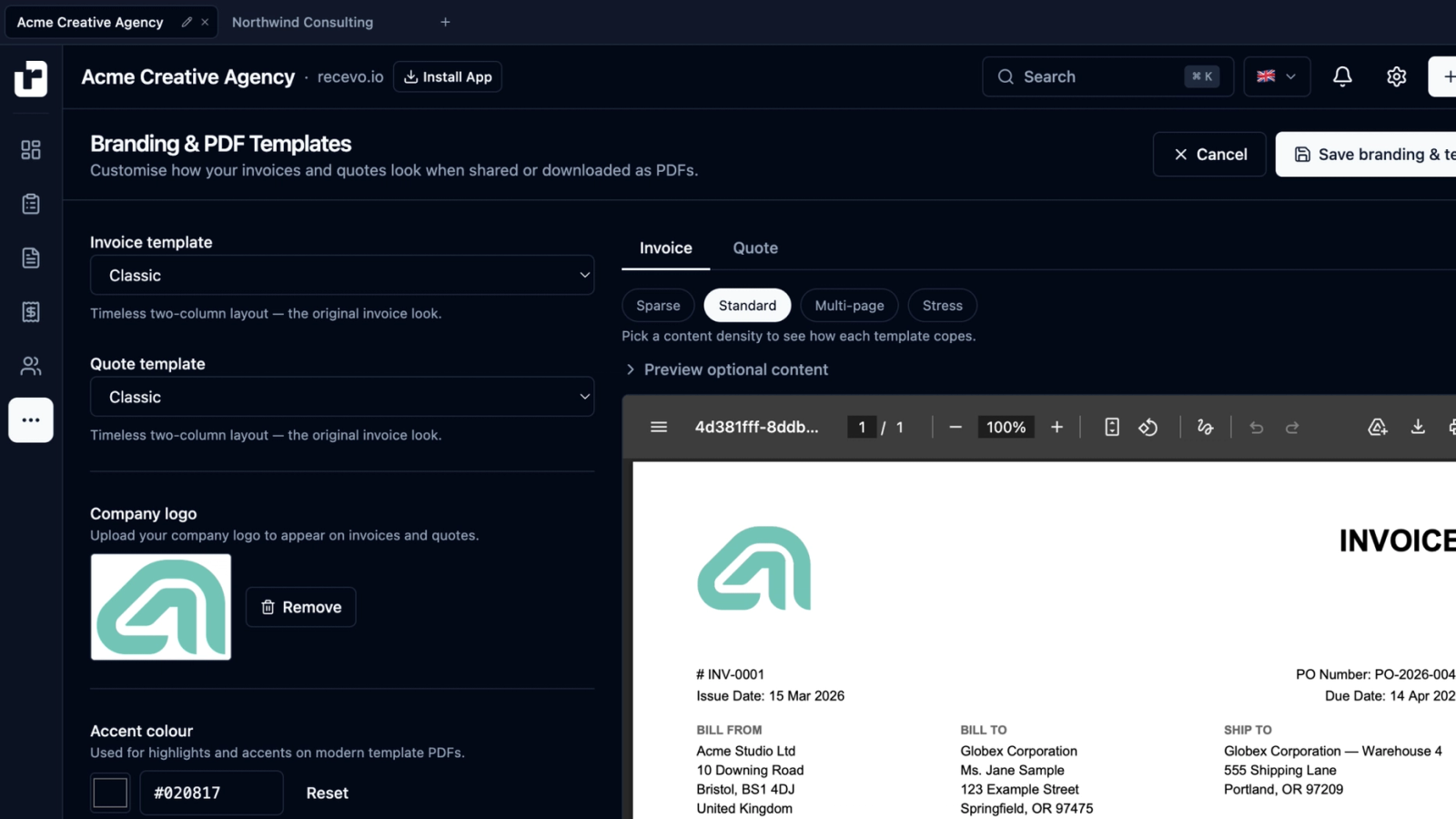
You can also set up your invoice branding, including logo and PDF styling, so your invoices look more professional than a plain template.
Step 3: Add your client details
Next, add the client you are invoicing.
This usually includes the client’s name, business name, billing address, and contact information.
If you invoice the same client again later, keeping customer details in your workspace saves time. Instead of retyping the same information each time, you can select the client and create a new invoice more quickly.
Step 4: Add your line items
Line items are the core of the invoice.
Each line should clearly explain what you are charging for. For example:
website design,
consulting session,
copywriting project,
electrical repair,
photography package,
monthly retainer,
one day of development work,
or supply of materials.
Add the description, quantity, rate, and any relevant tax or discount. recevo.io calculates totals automatically, which helps reduce mistakes compared with editing a document manually.
Clear line items are useful for clients too. The easier your invoice is to understand, the less likely it is to create payment delays or follow-up questions.
Step 5: Set the invoice date and due date
Your invoice should show when it was issued and when payment is due.
Common payment terms include due on receipt, 7 days, 14 days, or 30 days. The right terms depend on your business, your client agreement, and your usual workflow.
Adding a due date makes the payment expectation clear. It also helps you track whether an invoice is still outstanding or overdue.
Step 6: Add payment terms and notes
Payment terms tell your client how to pay you.
You might include bank transfer details, a payment reference, or a note asking the client to quote the invoice number when paying.
You can also add a short message, such as:
“Thank you for your business.”
“Payment due within 14 days.”
“Please use the invoice number as your payment reference.”
Good invoice notes do not need to be long. They just need to make payment easy.
Step 7: Review the invoice
Before sending any invoice, check the details carefully.
Make sure the client name is correct, the invoice number is unique, the line items make sense, the total is right, and the payment terms are clear.
This step is simple, but important. Small mistakes can delay payment or create unnecessary admin later.
recevo.io gives you a proper invoice editor, not just a blank PDF form, so you can review and adjust the invoice before exporting it.
Step 8: Export the invoice as a PDF
Once your invoice is ready, export it as a PDF.
A PDF is easy to email, upload, archive, or send to a client through your usual communication channel. It also preserves the layout, so your invoice looks consistent when the client opens it.
recevo.io includes professional PDF templates, branding options, and browser-side PDF generation. That means you can create an invoice that looks polished without using a design tool or manually formatting a document.
Step 9: Track whether the invoice has been paid
Creating an invoice is only the first part of the workflow.
After sending it, you need to know whether it has been paid.
With recevo.io, you can record payments and mark invoices as paid. This is useful if you invoice regularly and want a clearer picture of what is outstanding.
A basic invoice generator may help you create a PDF, but it often stops there. recevo.io gives you a lightweight invoicing workspace so you can manage what happens after the invoice is sent.
Why no signup does not have to mean “basic”
Some no-signup invoice tools are simple one-page forms.
That can be useful for a single invoice, but it becomes limiting if you invoice more than once or twice.
You may eventually want to reuse customer details, duplicate a previous invoice, track payment status, export branded PDFs, create quotes, record expenses, or prepare records for your accountant.
recevo.io is designed to stay simple without being shallow.
You can start with a single invoice, but the app also supports quotes and estimates, quote-to-invoice conversion, customer records, branded PDF templates, expense tracking, receipt attachments, live P&L, and accountant-ready exports.
The point is not to make invoicing complicated. The point is to give independent workers enough structure to stay organised without forcing them into a heavy accounting platform.
A private way to create invoices online
Invoice data can be sensitive.
An invoice may include your client’s name and address, your business details, project descriptions, hourly or daily rates, payment terms, totals, and revenue information.
Many online invoice generators store that data in a cloud account. recevo.io works differently.
Your workspace lives in your browser rather than a central recevo.io invoice database. Sensitive local data is encrypted at rest, and shared invoice or quote links are encrypted before leaving your browser.
That makes recevo.io a good fit for freelancers and sole traders who want a more private invoice generator.
You can still create professional invoices online, but you are not handing your entire invoice history to a cloud database just to export a PDF.
Works offline after first load
Another benefit of recevo.io is offline support.
Because it is a Progressive Web App, you can install it on your device and continue using it offline once the app has loaded.
That is useful if you work on-site, travel between clients, or sometimes need to create invoices with poor signal. A tradesperson can create an invoice at a job. A consultant can prepare a quote while travelling. A freelancer can update records without relying on a constant connection.
You get the convenience of a browser-based invoice generator with the resilience of an offline-capable app.
Create quotes before invoices
Not every job starts with an invoice.
Sometimes you need to send a quote or estimate first. The client agrees the scope, accepts the price, and only then do you invoice for the work.
recevo.io includes quotes and estimates as part of the same workflow. You can create a quote, include line items, scope, timelines, deliverables, notes, tax, and discounts, then convert the accepted quote into an invoice.
This saves time and reduces retyping. It also gives you a cleaner flow from first client conversation to final payment.
Keep expenses and records in one place
If you are self-employed, invoicing is only one side of the story.
You may also need to track expenses such as software, equipment, materials, travel, hosting, phone costs, tools, insurance, or subcontractor payments.
recevo.io includes expense tracking so you can record business costs alongside invoices. You can attach receipts, categorise expenses, and review your income and expenses from the dashboard.
This helps you understand more than just what you billed. It helps you see what you actually kept.
What about backups?
Because recevo.io is browser-first, backups matter.
Your workspace lives in your browser. That is what allows recevo.io to work without an account or central invoice database. But it also means you should not treat your browser as your only long-term storage location.
If you clear your browser data, reset your device, or remove site data, your local workspace can be deleted.
recevo.io includes Backup & Restore so you can export your data and store it securely. If you want to move your workspace to another device or protect your records, create a backup.
This is the honest trade-off of a local-first invoice app: more ownership and privacy, but more responsibility for your own files.
Who should use a no-signup invoice generator?
A no-signup invoice generator is useful for anyone who wants to invoice quickly without creating another account.
recevo.io is especially useful for:
freelancers,
sole traders,
self-employed workers,
consultants,
designers,
developers,
writers,
photographers,
tutors,
coaches,
tradespeople,
side hustlers,
and privacy-conscious professionals.
It is a good fit if you want professional invoices, PDF export, quotes, payment tracking, expenses, and local browser-based data.
It may not be the right fit if you need team accounts, payroll, bank feeds, automatic cloud sync, or a full multi-user finance system.
Frequently asked questions
Can I create an invoice without an account?
Yes. recevo.io lets you create invoices without signing up or creating an account. Open the app in your browser and start invoicing.
Can I export my invoice as a PDF?
Yes. You can export professional invoice PDFs from recevo.io and send them to your clients.
Is recevo.io free?
Yes. recevo.io is designed as a free invoicing tool for independent workers, with no premium invoice limit or subscription required.
Where is my invoice data stored?
Your recevo.io workspace lives in your browser. It is not stored in a central recevo.io invoice database. Because of this, you should use Backup & Restore to protect your records.
Can I use recevo.io offline?
Yes. recevo.io is a Progressive Web App. Once loaded, it can work offline, so you can create and manage invoices without a constant internet connection.
Can I create quotes too?
Yes. recevo.io includes quotes and estimates, and you can convert accepted quotes into invoices.
Is this a full accounting platform?
No. recevo.io is an invoicing tool for independent workers. It includes useful depth such as expenses, P&L, and accountant exports, but it is not payroll software, a bank-feed tool, or a multi-user accounting suite.
Start creating invoices without signing up
You do not need another account just to send an invoice.
With recevo.io, you can create a professional invoice, export a PDF, track payment, and keep your business data in your browser.
No signup. No subscription. No invoice limits. No central cloud invoice database.
Create your first invoice here:
Unlimited invoices, quotes & expenses · Free forever
Send your next invoice from recevo.io, and every one after it, free
Create the invoice, download a branded PDF or share a secure read-only link, then record the payment when it lands. Free forever, no account needed.
Free forever · No account · No card · No watermark · Opens in a new tab
Unlike most free invoice tools:
- Unlimited invoices and quotes
- Branded PDFs with no watermark
- Works offline in your browser
- Your data never leaves your device
- Expenses and profit tracking included
- No account, no card, no premium tier

“I set up my branding once - now everything I send looks professional.”