
How to Create an Invoice PDF Online for Free
Need to send a professional invoice PDF without signing up for another account? Here’s how to create, customise, download, and track invoice PDFs online for free with recevo.io.
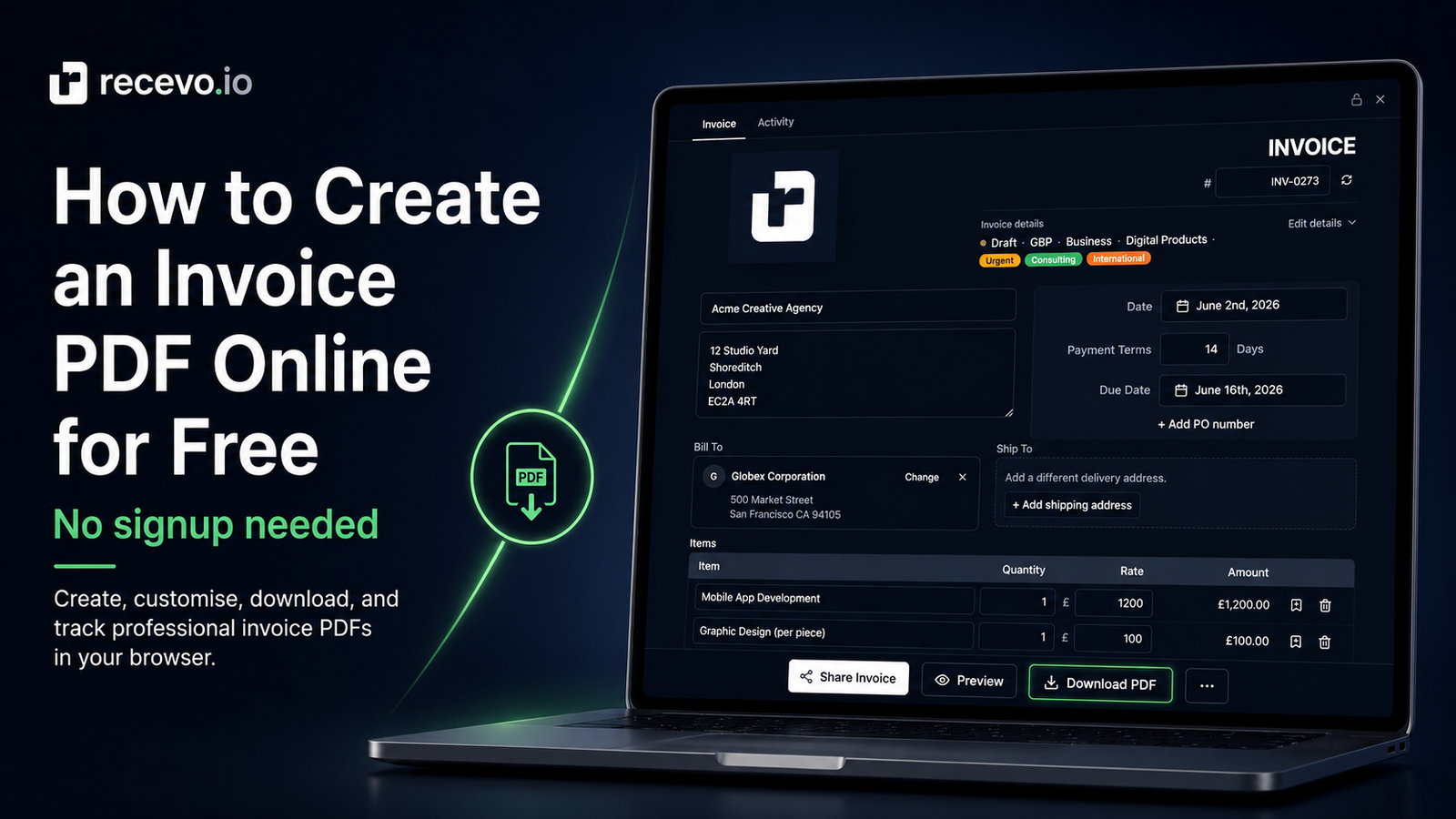
When a client asks for an invoice, they usually expect a PDF.
A PDF is easy to send by email. It looks consistent on different devices. It can be saved, printed, forwarded, uploaded to a client portal, or handed to an accountant later.
But creating a good invoice PDF should not mean fighting with a spreadsheet template, opening design software, or signing up for a full accounting platform you do not need.
If you are a freelancer, sole trader, consultant, tradesperson, or independent worker, you probably want something simpler:
Create the invoice.
Download the PDF.
Send it to the client.
Track whether it gets paid.
That is exactly what recevo.io is built for.
recevo.io is private, no-signup invoicing for independent workers. You can open the app and start creating professional invoice PDFs in your browser — no account required.
Why invoice PDFs are still useful
There are many ways to send payment information to a client.
You could write the details in an email. You could send a payment link. You could share a spreadsheet. You could use a document template.
But an invoice PDF is still one of the cleanest options because it gives the client a fixed, professional record of what they owe.
A good invoice PDF should make the important details easy to find:
- who the invoice is from
- who the invoice is for
- what work was done
- how much is due
- when payment is due
- how the client should pay
- what tax, discount, or shipping details apply
- which invoice number should be referenced
That clarity matters.
It reduces back-and-forth. It helps clients process payments. It gives both sides a document they can keep for their records.
The problem with making invoice PDFs manually
You can create an invoice PDF manually.
Many freelancers start with a spreadsheet or word processor. They duplicate an old invoice, edit the customer details, change the line items, update the number, export a PDF, and send it.
That works at first.
But manual invoice PDFs can become awkward over time.
You have to remember not to overwrite the previous file. You need to keep invoice numbers consistent. You need to check formulas. You need to make sure the PDF export has not broken the layout. You need to store the PDF somewhere sensible. You need to track whether the invoice has been sent or paid.
If you only invoice once or twice a year, that may be fine.
If invoicing is part of your normal work, it becomes admin overhead.
An invoice PDF generator should make the process faster, cleaner, and less fragile.
How to create an invoice PDF online for free with recevo.io
With recevo.io, you can create invoice PDFs directly in your browser.
There is no signup flow, no trial, no email address, and no subscription needed for the core no-signup app.
Here is the basic workflow.
1. Open the app
Start by opening recevo.io’s app:
Your workspace opens in the browser. You can start invoicing without creating an account.
This is useful when you need to send an invoice quickly and do not want to set up another software account just to export a PDF.
2. Add your invoice details
Next, create a new invoice and add the key information.
A professional invoice usually includes:
- your business or trading name
- your contact details
- the client’s name and address
- an invoice number
- an issue date
- a due date
- line items for the work, product, or service
- quantities and prices
- tax details, if relevant
- discounts or shipping, if needed
- notes or payment terms
recevo.io gives you an invoice editor built for these details, so you do not have to assemble the structure yourself.
Line item totals, tax, discounts, and final amounts are calculated for you as you work.
3. Customise the PDF
An invoice is not just a payment request. It is also part of your client experience.
A clear, professional-looking PDF helps your work feel organised and credible.
recevo.io includes built-in PDF templates, so you can create invoice PDFs that look polished without designing a layout from scratch. You can use your logo, choose an accent colour, and keep the document style consistent.
That means you do not need to keep adjusting spreadsheet columns, margins, page breaks, or export settings every time an invoice changes.
You create the invoice in the app, then download a professional PDF.
4. Download and send the PDF
Once the invoice is ready, export it as a PDF.
You can then send it in the way your client prefers:
- attach it to an email
- upload it to a client portal
- send it through a messaging app
- store it in your own records
- include it in a handoff to your accountant
A PDF gives you a stable version of the invoice at the point you sent it.
That is especially helpful when you want your records to match what the client received.
5. Track what happens next
Creating the PDF is only part of the invoicing workflow.
After you send the invoice, you still need to know whether it has been paid.
With a manual PDF, that usually means updating a spreadsheet, renaming a file, or relying on memory.
recevo.io lets you track invoice statuses and record payments and refunds against invoices. You can keep payment details with the invoice record instead of managing a separate tracking system.
That makes it easier to see what is still outstanding and what has already been settled.
Why use recevo.io instead of a basic PDF template?
A basic invoice template can be useful if you only need one invoice.
But recevo.io gives you a fuller workflow around the PDF.
You can create invoices, reuse customer details, manage line items, customise numbering, export PDFs, share invoices, track payments, clone previous invoices, and keep records organised in the browser.
That is the difference between a one-off document and an invoicing workflow.
You are not just creating a PDF. You are creating a record you can return to later.
Why use recevo.io instead of a spreadsheet?
Spreadsheets are flexible, but they are not really built for invoices.
They can calculate totals, but they do not naturally handle invoice statuses, PDF branding, payment records, encrypted sharing, customer reuse, private notes, locking, cloning, or audit trails.
You can create those systems yourself, but that means more setup and more maintenance.
recevo.io gives you the structure of an invoicing app while keeping the simplicity of a browser-based workflow.
For freelancers and sole traders, that can be a better fit than building a mini invoicing system inside a spreadsheet.
Your invoice data stays in your browser
One of the main differences with recevo.io is how it handles your normal workspace.
recevo.io is browser-based. Your normal workspace lives in your browser, not in a central recevo.io invoice database.
That is a deliberate privacy and ownership choice.
It means you can create invoice PDFs without handing your normal workspace to a cloud invoicing platform or creating another account.
There is an important trade-off, though.
Because your workspace lives in your browser, clearing browser data can remove your local recevo.io workspace unless you have a backup.
recevo.io supports manual JSON Backup & Restore, so you can export your data and store it somewhere safe. Backup files are plain JSON for portability and transparency, which means they may contain sensitive business data and should be stored securely.
If you choose to use Encrypted Cloud Backup, it is opt-in and off by default. It is designed as an off-device safety net, not real-time cloud sync or team collaboration.
Can you use recevo.io offline?
recevo.io is a Progressive Web App.
That means it can work offline once it has been loaded and cached. You can create and manage invoices without relying on a constant internet connection.
Some actions still need connectivity, such as the first load, app updates, and online sharing.
For independent workers who invoice on-site, while travelling, or in places with unreliable signal, that can be helpful.
You can prepare the invoice in the app, export the PDF, and keep your records in the same browser-based workspace.
What should your invoice PDF include?
A useful invoice PDF should be simple, complete, and easy for the client to act on.
At minimum, include:
Your details
Add your business name, trading name, address, and contact details.
This helps the client identify who the invoice is from and gives them the right information for their records.
Client details
Include the client’s name, company name, address, or billing details where relevant.
This is especially useful if the client has a finance team or needs to match the invoice to a supplier record.
Invoice number
Use a clear invoice number.
Consistent invoice numbering helps you and your client refer to the right document later.
Issue date and due date
The issue date shows when the invoice was created.
The due date tells the client when payment is expected.
Clear dates reduce confusion and make follow-up easier.
Line items
Break down what the client is paying for.
For each item, include a description, quantity, rate, and total. This helps the client understand the charge without needing to ask for clarification.
Tax, discounts, and totals
If tax applies, show it clearly.
If you have added a discount or shipping charge, make that visible too.
The final total should be easy to find.
Payment terms and notes
Add payment instructions, payment terms, or any helpful notes.
For example, you might include bank transfer details, a payment reference, or a short thank-you message.
Is recevo.io accounting software?
No.
recevo.io is an invoicing-first tool for independent workers.
It includes useful depth around quotes, expenses, categories, tax classification, live P&L visibility, and accountant-ready exports, but it is not accounting software, tax filing software, payroll software, or a replacement for your accountant.
That distinction matters.
The goal is not to make you learn a full accounting platform. The goal is to make everyday invoicing faster, cleaner, and easier to manage.
Frequently asked questions
Can I create an invoice PDF online for free?
Yes. recevo.io lets you create professional invoice PDFs online for free in your browser. You do not need to create an account to use the core no-signup invoicing app.
Do I need to sign up to create an invoice PDF?
No. Open the app and start invoicing — no account required.
You do not need an email address, password, trial, or subscription to create invoices with recevo.io.
Can I customise the invoice PDF?
Yes. recevo.io includes built-in PDF templates and branding options, including logo and accent colour support, so your invoice PDFs can look more professional and consistent.
Can I track whether the invoice has been paid?
Yes. recevo.io supports invoice statuses and payment/refund tracking, so you can keep a clearer record of what has been sent, paid, or still needs attention.
Is recevo.io private?
Yes. recevo.io is browser-based, and your normal workspace is not stored in a central recevo.io invoice database.
Because the workspace lives in your browser, you should use Backup & Restore and store backup files securely.
What happens if I clear my browser data?
If you clear browser data for recevo.io, your local workspace can be lost unless you have a backup.
Use manual JSON Backup & Restore to protect your records. Optional Encrypted Cloud Backup can provide an off-device safety net, but it is not real-time sync.
Can I send the invoice as a link instead of a PDF?
Yes. recevo.io supports encrypted read-only sharing for invoices and quotes. Shared links should still be treated as sensitive, just like PDF attachments.
Create your first invoice PDF
You should not need a subscription, account, or complicated accounting platform just to send a professional invoice PDF.
With recevo.io, you can create invoices in your browser, customise the PDF, download it, send it to your client, and keep your records organised.
Create your first invoice PDF here:
No signup. No subscription. No invoice limits. Just private, browser-based invoicing for independent workers.