
Bank Reconciliation Without Connecting Your Bank
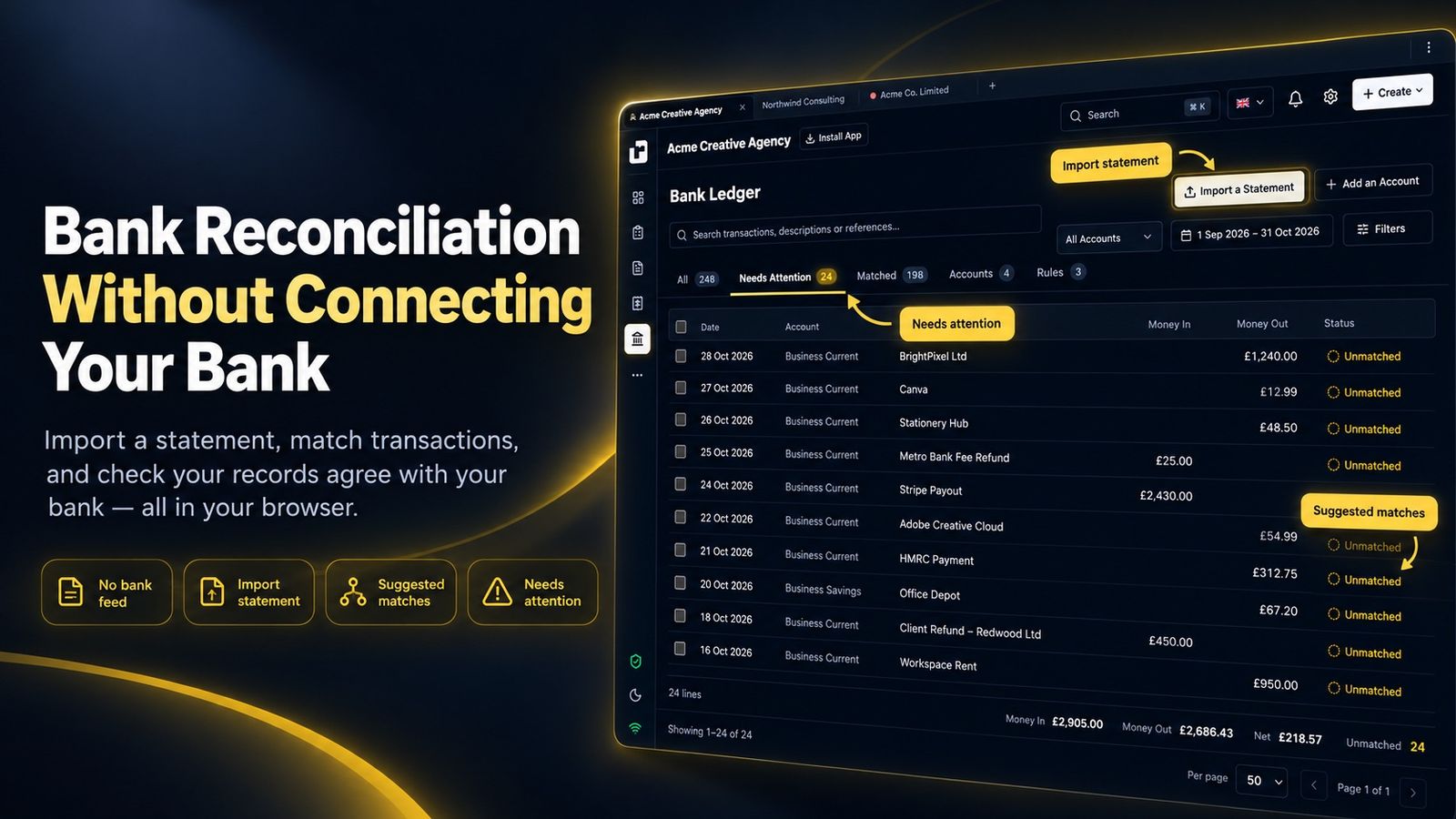
Bank reconciliation is now available in recevo.io. Import a statement from your bank, match transactions to invoices and expenses, and check that your records agree with your bank — without connecting your bank account or uploading the statement.
Invoices tell you what you billed.
Expenses tell you what you recorded spending.
Your bank statement tells you what actually happened.
Customers paid. Direct debits went out. Subscriptions renewed. Bank charges appeared. A customer paid three invoices in one transfer. Perhaps an expense slipped through without being recorded at all.
Checking those bank transactions against your records is bank reconciliation.
And it is now built into recevo.io.
The new Bank feature lets you download a statement from your bank, open it in recevo.io, and match each transaction to the invoice, expense or other item it relates to.
There is no bank connection.
No Open Banking access.
No ongoing link to your current account.
Your statement is read inside your browser and never uploaded.
It is a private way to answer a simple question:
Do the records in recevo.io agree with what actually happened in your bank account?
What is bank reconciliation?
Bank reconciliation means comparing your own financial records with the transactions shown by your bank.
Imagine your records say that:
- five invoices have been paid
- you spent £420 on business expenses
- a software subscription costs £30 each month
Your bank statement provides another version of events.
Perhaps one of those invoices was never actually paid.
Perhaps the subscription increased to £35.
Perhaps there is a £12 bank charge you forgot to record.
Bank reconciliation helps you find those differences.
For a sole trader or freelancer keeping their own records, it can answer three especially useful questions:
Have the invoices I marked as paid really been paid?
Have I recorded all the expenses that actually left my account?
Do the figures in my records agree with the bank?
Until now, answering those questions often meant manually working through a spreadsheet or using software connected directly to your bank.
recevo.io takes a different approach.
Start with the statement you already download from your bank
Open Bank from the menu in recevo.io, add your current account, then choose Import a Statement.
The Bank feature can read:
- CSV
- OFX, including QFX
- QIF
CSV statements from Lloyds Bank and Starling Bank are recognised automatically.
If you use another bank, that does not mean you need to manually rewrite the statement.
As long as your bank lets you download a suitable CSV, OFX or QIF file, you can use it.
For a CSV from another bank, simply tell recevo.io which columns contain the date, amount and description.
It remembers that setup for the account, so you do not have to map the same columns every time.
Your bank statement is never uploaded
This is an important part of how the feature works.
When you open a statement, the file is read entirely inside your browser.
The statement itself is never uploaded to recevo.io.
There is no bank login for you to hand over, no Open Banking connection and no third party receiving ongoing access to your bank account.
The details of each imported line — such as the payee, description and reference — are stored encrypted on your device.
Those records are also included in your own backups. If you use optional Cloud Backup, the backup is end-to-end encrypted.
This keeps the Bank feature consistent with the rest of recevo.io: useful financial records without turning your workspace into a centrally hosted account.
Import statements as often as you need
You do not need to keep perfectly organised statement files.
If one statement covers September and another covers September and October, you can import both.
recevo.io detects the transactions it has already seen, so overlapping imports do not create duplicate bank lines.
Import the same statement twice and you still do not get the same transactions twice.
And if you import the wrong file?
Use Undo Import.
Before anything is removed, recevo.io shows you what the undo will affect so you can check it first.
Match bank transactions to what actually happened
Once the transactions are in the Bank page, you work through the lines and tell recevo.io what each one represents.
Where it can identify a likely match, it shows a Suggested Match.
More importantly, it tells you why.
For example:
The reference names INV-0012, and the amount is what's owed.
You can check the suggestion and accept it with one press.
Or you can choose the correct match yourself.
A bank transaction can represent things such as:
- a payment for an invoice
- an expense you already recorded
- a new expense
- a transfer between your own accounts
- personal spending
- a tax payment or refund
- a loan repayment
- a refund of an invoice payment
You can also select several transactions and match them together rather than processing every line individually.
Nothing is matched without you confirming it.
recevo.io suggests.
You decide.
One payment can cover several invoices
Real bank transactions are not always as tidy as one payment for one invoice.
A customer might owe you three invoices and decide to pay all three with a single bank transfer.
The amount reaching your bank therefore will not match any individual invoice.
The Bank feature can spot when the total of several invoices matches a payment and suggest them together.
For example:
Pays 3 invoices from Acme Ltd, which together come to the amount.
You can review the invoices and confirm the match.
That gives you a much clearer record than trying to force one large payment against a single invoice.
Part payments are handled too
Customers also sometimes pay less than the full invoice balance.
Perhaps you agreed to split a payment.
Perhaps they have paid a deposit.
Or perhaps only part of the balance has arrived.
recevo.io can suggest a part payment and show you what will remain outstanding.
For example:
Pays part of INV-0042, and £600.00 will remain.
When a bank payment is matched to an invoice, recevo.io records no more than the amount the invoice is actually owed.
The payment is also recorded using the bank transaction's own date.
Find expenses you forgot to record
Bank reconciliation is not only about checking invoice payments.
Your bank statement can expose expenses that never made it into your records.
Perhaps you forgot about:
- a monthly software subscription
- a bank charge
- hosting
- a supplier payment
- insurance
- a small purchase you made several weeks ago
An unmatched outgoing transaction remains in Needs Attention until you decide what it represents.
If it is an expense you have already recorded, match it.
If you forgot to record it, you can create a new expense directly from the bank line.
That makes the bank statement useful as a second check on your expense records rather than another list you need to maintain separately.
Let recevo.io remember the choices you make
Some bank transactions happen again and again.
If every payment to the same supplier belongs in the same place, you should not have to make the same decision from scratch every month.
Suppose you match a Tesco transaction and choose Remember This for Tesco.
When another matching Tesco transaction appears later, recevo.io can suggest the same treatment.
Your rules appear on their own Rules tab.
You can:
- see them
- edit them
- switch them off
- drag them into the order you want
The rules remain visible and under your control.
They do not silently change your records.
Every suggested match still waits for your confirmation.
Recurring expenses become easier to confirm
The same principle helps with recurring bills.
If you have already set up rent, subscriptions or other recurring expenses in recevo.io, their bank transactions can be matched against those records.
Instead of wondering whether this month's subscription payment was recorded, you can confirm it from the transaction that actually left your bank account.
And when you create a new expense from a bank transaction, previous history can help with the details.
For example:
Last time you paid Tesco it was Groceries.
Again, it is a suggestion rather than a decision made for you.
See what still needs attention
The aim of reconciliation is not simply to categorise transactions.
It is to know where your records and your bank disagree.
Each current account in recevo.io therefore shows:
- Bank Balance
- the total represented in your books
- the Difference between them
- the date you are reconciled to
- a Still to Do list
The Needs Attention tab collects the statement lines that still need to be matched.
So instead of scanning an entire statement wondering what you have missed, you can concentrate on what remains unresolved.
Payments you previously recorded in recevo.io but which do not appear on a statement are shown too.
And if a payment never went through the bank at all — perhaps you were paid in cash — you can mark it as Not Through the Bank.
The satisfying part: getting the difference to zero
Suppose your records say you have £8,450.
Your bank statement says £8,485.
There is a £35 difference.
Rather than treating that as an abstract accounting problem, you can work through the transactions in Needs Attention.
Then you find it: a £35 subscription renewal that was never recorded as an expense.
Create the expense from the bank line.
The difference disappears.
Your bank and your records now agree.
That is the practical purpose of reconciliation.
It gives you confidence that the invoices, payments and expenses you have been recording reflect what actually happened.
Add more than one current account
If your business uses several current accounts, you can add them separately.
There is no fixed limit on the number of current accounts you can keep in the Bank section, and each account can have its own currency.
Where a statement file does not provide a running balance, you can enter the closing balance yourself.
The feature currently supports current accounts, not credit-card accounts.
Your dashboard still comes from your invoices and expenses
Adding a bank account does not suddenly replace your existing recevo.io records with the contents of your statement.
Your dashboard and profit figures still come from your invoices and expenses.
The Bank feature checks those records against the bank.
That distinction matters.
A transaction appearing on your statement does not silently rewrite your books.
You review the transaction, decide what it represents, and confirm the match.
Take the reconciliation record to your accountant
A useful reconciliation should not disappear when it is time to hand your records over.
Once you have added a bank account, the Records Pack and Export page in recevo.io can include a bank-ledger.csv file.
That file contains each statement line and what it was matched to.
So your accountant can see not just your invoices and expenses, but the reconciliation work connecting those records back to your bank transactions.
recevo.io does not provide tax advice or replace an accountant. The aim is to give you clearer records that you — or the professional helping you — can actually use.
No bank feed required
Bank feeds are convenient for people who want them.
But they require an ongoing connection between financial software and a bank account.
That is not the only way to reconcile a bank statement.
With recevo.io, the process is deliberately different:
- Download a statement from your bank.
- Open it in recevo.io.
- Review the suggested matches.
- Confirm what each transaction represents.
- Deal with anything still needing attention.
- Check that your bank and your records agree.
You choose when the statement comes in.
You choose what gets matched.
And there is no persistent connection to your bank account.
Frequently asked questions
What is bank reconciliation?
Bank reconciliation is the process of comparing your own financial records with your bank transactions.
It can help you identify payments that have not arrived, expenses you have not recorded, transactions that need explaining and differences between your records and the balance shown by your bank.
Does recevo.io connect to my bank account?
No.
recevo.io does not use a bank feed or Open Banking connection for reconciliation.
You download a statement from your bank and open it in recevo.io yourself.
Is my bank statement uploaded to recevo.io?
No.
The statement file is read inside your browser and is never uploaded to recevo.io.
The details of each imported line, such as its payee, description and reference, are stored encrypted on your device.
Which statement formats can I import?
recevo.io can read CSV, OFX, QFX and QIF statement files.
Lloyds Bank and Starling Bank CSV exports are recognised automatically.
For CSV statements from other banks, you can identify the relevant columns once and recevo.io remembers the setup for that account.
Does it work with every bank?
It works with banks that let you download a statement in a supported CSV, OFX or QIF format.
Lloyds Bank and Starling Bank CSV statements are recognised automatically. Other supported statement files may need to be mapped when you first use them.
What happens if I import the same transactions twice?
They are not duplicated.
recevo.io is designed to recognise transactions it has already imported, including when statement periods overlap.
Can I undo a statement import?
Yes.
Undo Import lets you remove an import, and shows you what will be affected before anything is removed.
Does recevo.io match transactions automatically?
No match is applied without your confirmation.
recevo.io can suggest likely matches and explain why it is suggesting them, but you decide whether to accept each one.
Can one payment be matched to several invoices?
Yes.
If a customer pays several invoices in one transfer, recevo.io can suggest matching that bank transaction against the group of invoices whose balances make up the payment.
Can it handle part-paid invoices?
Yes.
A bank transaction can be matched as a part payment, with the remaining invoice balance left outstanding.
Can I create an expense from a bank transaction?
Yes.
If an outgoing transaction represents an expense you have not recorded yet, you can create the expense from the bank line.
Does the Bank feature change my profit figures?
Not by itself.
Your dashboard figures still come from the invoices and expenses in your workspace.
The Bank page checks those records against your bank transactions.
Can I reconcile credit cards?
Not currently.
The Bank feature currently supports current accounts.
Does recevo.io provide tax advice?
No.
recevo.io helps you organise and reconcile your records, but it does not provide tax advice or decide how individual transactions should be treated for tax.
If you are uncertain about a transaction or your record-keeping obligations, speak to an accountant or tax adviser.
Check that your records agree with your bank
Creating invoices and recording expenses is useful.
Checking them against what actually happened is what closes the loop.
Bank reconciliation is now available in recevo.io, giving freelancers, sole traders and independent workers a way to compare their records with their bank statements without handing over ongoing access to their bank account.
Download your statement.
Open it in your browser.
Review the matches.
And see whether your bank agrees with your records.
Open recevo.io and reconcile your first statement
No signup. No bank connection. No statement upload. Just private, browser-based invoicing and financial record-keeping for independent workers.
Unlimited invoices, quotes & expenses · Free forever
Ready to start? Unlimited invoices, free forever
Open recevo.io, add your details and line items, and download the PDF. Nothing is stored on our servers, and there is no account to create.
Free forever · No account · No card · No watermark · Opens in a new tab
Unlike most free invoice tools:
- Unlimited invoices and quotes
- Branded PDFs with no watermark
- Works offline in your browser
- Your data never leaves your device
- Expenses and profit tracking included
- No account, no card, no premium tier

“Works perfectly on-site, even with weak signal - I create the estimate in front of the client.”