
How to Turn a Quote Into an Invoice
Turning an accepted quote into an invoice should be simple. This guide explains how freelancers, sole traders, consultants, tradespeople, and independent workers can move from quote to invoice without duplicating work. With recevo.io, you can create professional quotes, convert accepted quotes into invoices, export PDFs, track payments, and keep your business records organised in the browser.
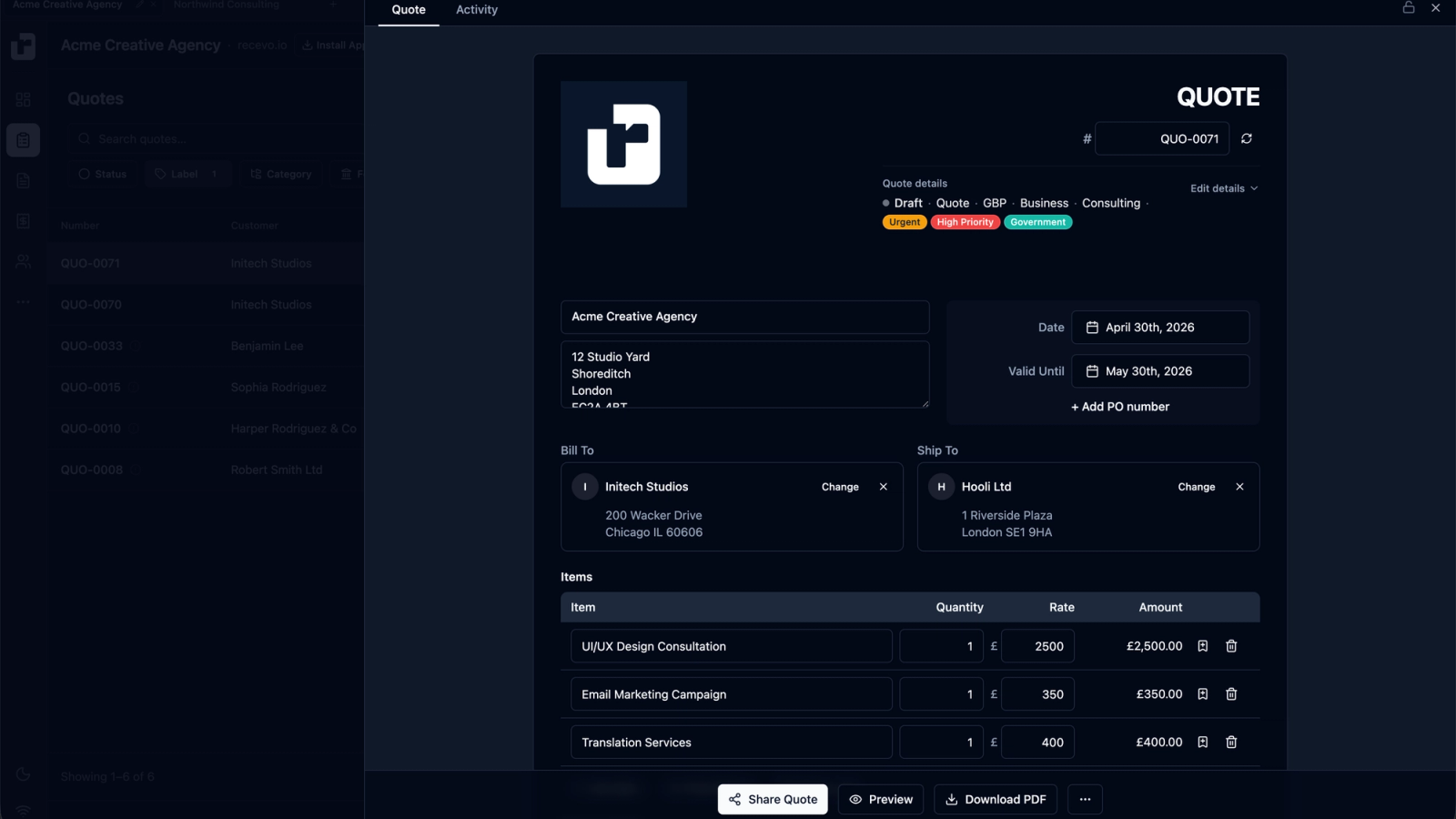
Many jobs do not start with an invoice.
They start with a quote.
A client asks how much the work will cost. You prepare a quote or estimate. The client accepts it. Then, once the work is approved, started, or completed, you need to turn that quote into an invoice.
That process should be simple.
But if you are using separate templates, spreadsheets, documents, or basic invoice generators, it often means copying the same information twice: client details, line items, prices, tax, discounts, notes, payment terms, and project scope.
That creates extra admin and increases the chance of mistakes.
recevo.io is built to make the quote-to-invoice workflow easier. You can create a professional quote, send it to your client, and then convert it into an invoice when the quote is accepted — without retyping everything from scratch.
What is the difference between a quote and an invoice?
A quote and an invoice are related, but they are not the same thing.
A quote is usually sent before work begins. It explains what you plan to do, how much it will cost, what is included, and how long the offer is valid for. A quote helps the client decide whether to go ahead.
An invoice is sent when payment is due. It confirms what the client needs to pay, when payment is due, and how they should pay you.
In simple terms:
A quote helps win or confirm the work.
An invoice helps you get paid.
For freelancers, sole traders, consultants, creatives, tradespeople, and independent workers, both documents are part of the same business workflow.
Why quote-to-invoice conversion matters
If you only send occasional invoices, copying details manually may not feel like a big problem.
But once you start quoting and invoicing regularly, duplicated admin becomes frustrating.
You may need to copy the client name, billing address, line items, tax, totals, payment terms, and project notes from one document into another. You then need to check that nothing changed accidentally between the quote and the invoice.
That is exactly the kind of repetitive work a good invoicing tool should remove.
Quote-to-invoice conversion helps you:
save time,
avoid retyping client details,
reduce errors,
keep pricing consistent,
move faster once a client accepts,
and keep a cleaner record of the job from estimate to payment.
Instead of treating quotes and invoices as separate documents, recevo.io connects them into one workflow.
When should you turn a quote into an invoice?
The right time depends on your business and how you work.
Some freelancers invoice as soon as a quote is accepted, especially if they require a deposit before starting.
Some invoice when a project milestone is reached.
Some invoice after the work is complete.
Some tradespeople create an estimate on-site, then turn it into an invoice when the job is finished.
Some consultants quote a scope of work first, then invoice once the client signs off.
The important thing is that the invoice should reflect the agreed work, pricing, tax, and payment terms. If the accepted quote already contains those details, converting it into an invoice is much faster than starting again.
What should a quote include before conversion?
Before turning a quote into an invoice, make sure the quote contains the information you want to carry forward.
A useful quote usually includes:
Client details
The person or business you are quoting for, including billing details where needed.
Quote number
A clear reference number so both you and the client can identify the quote.
Quote date
The date the quote was issued.
Validity date
How long the quote is valid for. This is useful if prices, materials, availability, or project scope may change.
Scope of work
A clear explanation of what is included.
Line items
The products, services, hours, days, materials, or deliverables being quoted.
Tax and discounts
Any tax, VAT, discounts, or adjustments that apply.
Total price
The full amount the client can expect to pay if they accept.
Terms and notes
Any payment terms, project assumptions, exclusions, or extra context.
With recevo.io, you can build quotes with the same structured approach as invoices, which makes conversion cleaner later.
How to turn a quote into an invoice with recevo.io
The basic process is straightforward.
Create the quote, wait for the client to accept, then convert it into an invoice.
Here is how the workflow works.
Step 1: Create a professional quote
Start by creating a quote in recevo.io.
Add the client details, line items, pricing, tax, discounts, project notes, scope of work, timeline, deliverables, and validity date.
This gives your client a clear document to review before agreeing to the work.
A strong quote should remove uncertainty. The client should understand what is included, what it costs, when the offer expires, and what happens next if they accept.
Step 2: Send the quote to your client
Once the quote is ready, you can export it as a PDF or share it with your client.
A professional quote helps set expectations before work begins. It also gives both sides a reference point if questions come up later.
For freelancers and sole traders, this is especially useful. A clear quote can reduce scope confusion, pricing disputes, and awkward conversations once the work is underway.
Step 3: Wait for the client to accept
After sending the quote, the client may accept it as-is, ask for changes, or request a revised version.
If the scope changes, update the quote before turning it into an invoice. That way, the invoice reflects the final agreed work rather than an earlier draft.
This is one of the reasons it is helpful to keep quotes and invoices in the same workspace. You can manage the quote first, then invoice from the agreed version.
Step 4: Convert the quote into an invoice
When the client accepts, convert the quote into an invoice.
recevo.io carries the key details across, so you do not need to recreate the invoice manually. The customer, line items, tax, discounts, notes, and totals can move from quote to invoice as part of the workflow.
This saves time and helps keep the invoice consistent with what the client already approved.
Step 5: Review the invoice before sending
Even when the invoice is created from a quote, you should still review it before sending.
Check the invoice number, issue date, due date, line items, tax, totals, payment terms, and any final notes.
You may also need to adjust the invoice if the payment structure has changed. For example, you might invoice a deposit first, split the job into milestones, or invoice the final balance after completion.
The conversion gives you a strong starting point, but the invoice should still be checked before it goes to the client.
Step 6: Export the invoice as a PDF
Once the invoice is ready, export it as a PDF.
PDF invoices are easy to email, archive, upload to client systems, or store for your own records.
recevo.io includes branded PDF templates, so you can create invoices that look professional without using a design tool. You can add your logo, set an accent colour, and keep your documents consistent across quotes and invoices.
Step 7: Track payment
After sending the invoice, the next step is payment tracking.
You can mark invoices as paid, record payment details, and keep an eye on outstanding or overdue invoices.
This is where a connected quote and invoice workflow becomes more useful than a basic document template. You are not just creating a PDF. You are keeping a record of the work from quote to invoice to payment.
Why not just copy a quote manually?
You can copy a quote manually into an invoice, but it is easy to make mistakes.
You might copy the wrong client details, miss a line item, forget a discount, change the tax calculation, use the wrong date, or accidentally invoice from an outdated version of the quote.
Manual copying also takes time, especially if your quotes include detailed scopes, multiple line items, or project-specific terms.
A quote-to-invoice workflow reduces that friction. It lets you reuse the agreed information and focus on reviewing the invoice rather than rebuilding it.
Good quote-to-invoice workflows help you look more professional
Clients notice when your documents are clear and consistent.
If your quote looks one way and your invoice looks completely different, it can feel disjointed. If the invoice total does not match the accepted quote, it can create questions or delay payment.
Using the same app for quotes and invoices helps keep your documents aligned.
The quote sets the expectation. The invoice confirms the payment request.
That consistency is useful whether you are a designer, developer, consultant, writer, photographer, tutor, tradesperson, coach, or any other independent worker.
Quotes are especially useful for project-based work
Quote-to-invoice conversion is particularly helpful when your work is project-based.
For example, you might quote for:
website design,
copywriting,
consulting,
building work,
photography,
coaching packages,
garden landscaping,
video editing,
training sessions,
or a monthly service package.
In each case, the client usually wants to understand the cost before approving the work. Once they accept, you need a quick way to turn that approved quote into an invoice.
recevo.io is designed for that kind of independent work.
What about estimates?
Some businesses use the word “quote,” while others use “estimate.”
The difference can matter depending on your industry, region, and terms. A quote is often treated as a firmer price, while an estimate may be more flexible and subject to change.
In practice, many freelancers and sole traders use both depending on the job.
recevo.io supports quote and estimate workflows, so you can use the wording that best fits your business.
If the client accepts the estimate and the final price is agreed, you can turn it into an invoice when payment is due.
Better than a basic invoice generator
A basic invoice generator can help you create a single invoice PDF.
But if your workflow starts with a quote, a simple invoice form may not be enough.
You need a way to create the quote, keep it organised, adjust it if the scope changes, convert it into an invoice, export a PDF, and track whether the invoice has been paid.
recevo.io gives you that connected workflow while still staying simple.
It is not trying to be heavy accounting software. It is an invoicing tool for independent workers who need practical features without unnecessary overhead.
Keep invoice and quote data in your browser
Quote and invoice data can be sensitive.
Your documents may include client names, addresses, project details, rates, totals, timelines, deliverables, and payment terms.
recevo.io is browser-first by design. Your workspace lives in your browser rather than a central recevo.io invoice database. Sensitive local data is encrypted at rest, and shared quote or invoice links are encrypted before leaving your browser.
That makes recevo.io useful for privacy-conscious freelancers and sole traders who do not want every quote and invoice stored in another cloud account.
You can still create professional documents online, but your business data remains under your control.
Works offline once loaded
Because recevo.io is a Progressive Web App, it can work offline once loaded.
That is useful if you create quotes or invoices on-site, while travelling, or in places with unreliable internet.
A tradesperson can prepare an estimate at a client’s home. A consultant can update a quote while travelling. A freelancer can create an invoice without depending on a constant connection.
The quote-to-invoice workflow stays available even when your internet connection does not.
Remember to back up your workspace
recevo.io’s browser-first model has an important trade-off: backups matter.
Because your workspace lives in your browser, there is no automatic cloud sync. If you clear browser data, reset your device, or remove site data without a backup, your local workspace can be deleted.
recevo.io includes Backup & Restore so you can export your data and store it securely.
This is the trade-off of local-first invoicing: more privacy and control, but more responsibility for protecting your own records.
Who needs quote-to-invoice software?
Quote-to-invoice software is useful for anyone who prices work before invoicing for it.
That includes:
freelancers,
sole traders,
consultants,
designers,
developers,
copywriters,
photographers,
tradespeople,
tutors,
coaches,
creative professionals,
and side hustlers.
If you often send a price before starting work, quote-to-invoice conversion can save time and help you stay organised.
Frequently asked questions
Can I turn a quote into an invoice?
Yes. With recevo.io, you can create a quote or estimate and convert it into an invoice when the client accepts.
What is the benefit of converting a quote to an invoice?
It saves time and reduces mistakes. You do not need to retype the same client details, line items, tax, totals, and notes into a new invoice.
Should I send a quote or an invoice first?
Send a quote before the client has agreed to the work or price. Send an invoice when payment is due.
Can I convert an estimate into an invoice?
Yes. If you use estimates instead of quotes, you can use the same workflow: prepare the estimate, agree the work, then create the invoice when payment is due.
Can I export the invoice as a PDF?
Yes. recevo.io lets you export professional invoice PDFs that you can send to clients or keep for your records.
Do I need to sign up to use recevo.io?
No. recevo.io is a no-signup invoicing app. You can open it in your browser and start creating quotes and invoices without creating an account.
Does recevo.io store my quotes and invoices in the cloud?
No. recevo.io is browser-first. Your workspace lives in your browser rather than a central recevo.io invoice database. Because of this, you should use Backup & Restore to protect your records.
Start with a quote, finish with an invoice
Turning a quote into an invoice should not mean copying the same details twice.
With recevo.io, you can create professional quotes, convert accepted quotes into invoices, export branded PDFs, and track payment from one browser-based workspace.
No signup. No subscription. No invoice limits. Just private, no-signup invoicing for independent workers.
Create your first quote or invoice here:
Unlimited invoices, quotes & expenses · Free forever
Start with a quote, finish with an invoice
Create the quote, share a read-only link, and convert it to an invoice the moment it is accepted. Free, no sign-up, no invoice limits.
Free forever · No account · No card · No watermark · Opens in a new tab
Unlike most free invoice tools:
- Unlimited invoices and quotes
- Branded PDFs with no watermark
- Works offline in your browser
- Your data never leaves your device
- Expenses and profit tracking included
- No account, no card, no premium tier

“Detailed quotes with my own payment terms, and my income at a glance.”