
How to Send a Professional Invoice to a Client
Sending an invoice well can help clients understand what they owe, when to pay, and how to pay. Here’s how freelancers can send professional invoices with less friction.
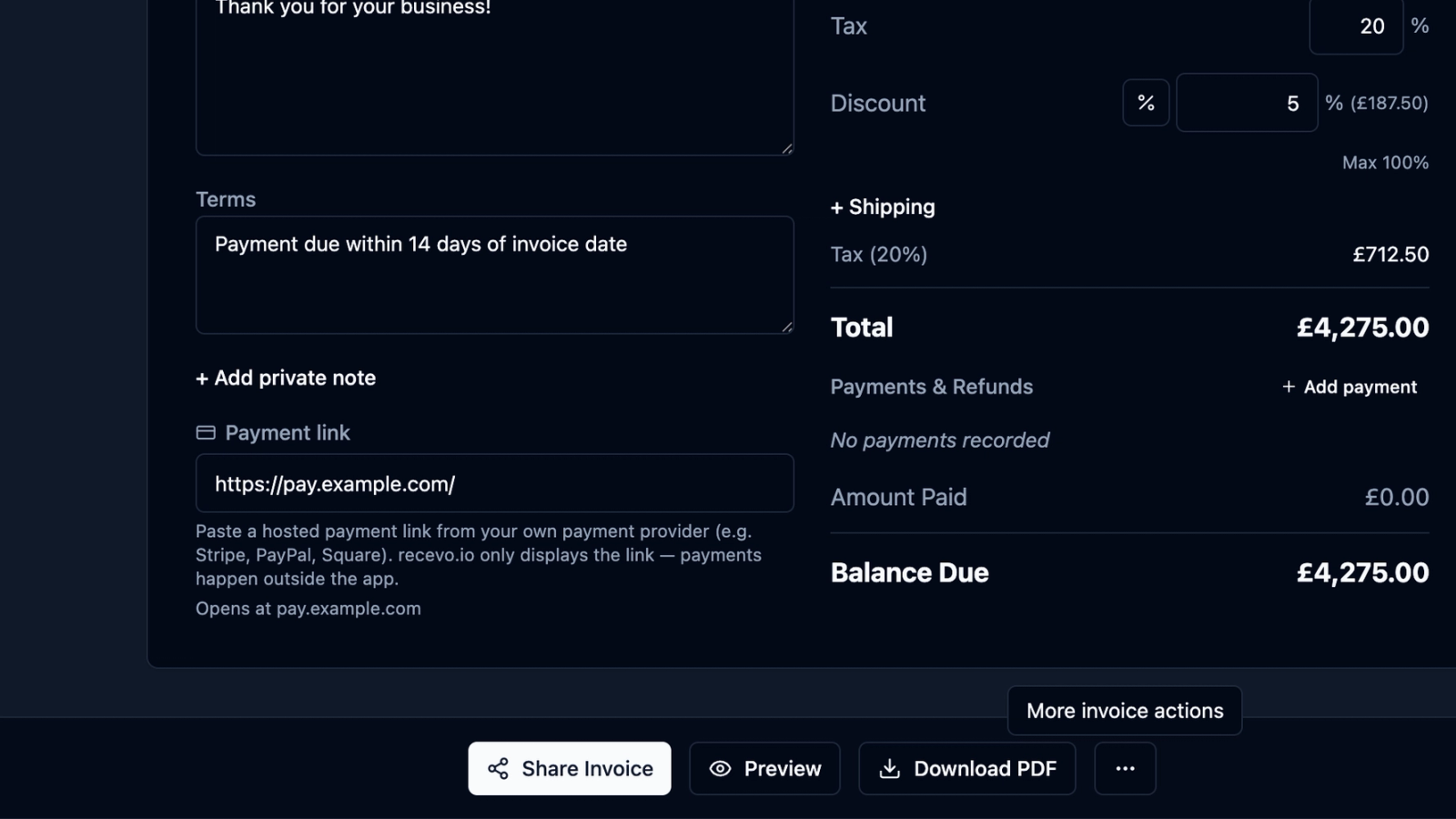
Creating an invoice is one part of getting paid.
Sending it properly is another.
A professional invoice should be easy for your client to understand, process, approve, and pay. That means the invoice itself needs to be clear, but the way you send it matters too.
If the email is vague, the due date is missing, the payment details are unclear, or the invoice is sent as an editable document instead of a PDF, you can create unnecessary friction.
For freelancers, sole traders, consultants, tradespeople, creatives, and independent workers, good invoicing is not just admin. It is part of the client experience.
In this guide, we’ll cover how to send a professional invoice to a client, what to include in the message, when to follow up, and how recevo.io can help you create, send, and track invoices without signing up for another account.
Why the way you send an invoice matters
Clients receive a lot of documents.
Quotes, contracts, purchase orders, receipts, statements, reports, and invoices can all land in the same inbox.
A clear invoice message helps your invoice stand out for the right reason.
The client should be able to see:
- what the invoice is for
- how much is due
- when payment is due
- how to pay
- which invoice number to use as a reference
- who to contact with questions
This is especially important if your client has a finance team or an approval process.
A professional invoice email can reduce back-and-forth, avoid payment delays, and make you look organised.
1. Check the invoice before sending
Before you send the invoice, check the details carefully.
Small mistakes can delay payment.
Make sure the invoice includes:
- your business or trading details
- the client’s correct billing details
- a unique invoice number
- invoice date
- payment due date
- clear line item descriptions
- quantities, rates, and totals
- tax details, if relevant
- discounts or shipping, if relevant
- total amount due
- currency
- payment instructions
- payment terms
- purchase order or project reference, if needed
If the client has asked for a purchase order number, department name, supplier reference, or specific billing address, include it before sending.
Missing details can send the invoice back into an admin loop.
2. Send the invoice as a PDF
In most cases, send the invoice as a PDF.
PDFs are stable, easy to save, and easy for clients to forward to finance teams. They are also less likely to display differently across devices compared with editable documents or spreadsheets.
A PDF gives both sides a fixed record of what was sent.
That matters later if there is a question about the invoice amount, payment terms, line items, or due date.
With recevo.io, you can create professional invoice PDFs in your browser using built-in templates and branding options. You can add your logo, choose an accent colour, and export a polished PDF without maintaining a fragile spreadsheet layout.
3. Use a clear email subject line
Your subject line should make the invoice easy to identify.
Avoid vague subject lines like:
“Invoice”
or:
“Payment”
Use something more specific:
“Invoice INV-0042 for Acme Ltd”
or:
“Invoice INV-0042 — June design work”
A good subject line helps the client search for the invoice later and forward it to the right person.
If the client has a purchase order number, you may include that too.
For example:
“Invoice INV-0042 — PO 12345”
4. Keep the email short and helpful
Your invoice email does not need to be long.
The goal is to give the client the key information and make payment easy.
A simple invoice email might look like this:
Hi [Client Name],
Please find attached invoice [Invoice Number] for [brief description of work].
The total due is [Amount], with payment due by [Due Date].
Payment details are included on the invoice. Please use [Invoice Number] as the payment reference.
Many thanks,
[Your Name]
This is clear, polite, and practical.
It tells the client what the invoice is, what the amount is, when it is due, and how to reference payment.
5. Mention the invoice number in the email
The invoice number should appear on the invoice itself, but it is useful to include it in the email too.
For example:
“Please find attached invoice INV-0042.”
This makes the message easier to search and gives the client a clear reference from the start.
If you want the client to use the invoice number as the payment reference, say so.
For example:
“Please use INV-0042 as the payment reference.”
That can make it easier to match the payment later.
6. Make the due date obvious
Do not make the client calculate the due date.
If your payment terms are 14 days, include the actual due date as well.
Instead of only saying:
“Payment due within 14 days”
say:
“Payment is due by 30 June 2026.”
You can still include your terms on the invoice, but a specific date in the email makes the request easier to act on.
Clear due dates also make follow-up easier if payment is late.
7. Include payment instructions
Your invoice should include payment instructions, but the email can gently reinforce them.
Depending on how you work, payment instructions may include:
- bank transfer details
- payment reference
- payment link
- accepted payment methods
- international payment notes
- cheque or cash details, if relevant
Keep this simple.
If the payment details are already on the PDF, you can say:
“Payment details are included on the invoice.”
If the client often asks for details by email, you can include a short version in the message too.
8. Be polite, but direct
Some freelancers feel awkward asking for payment.
But an invoice is a normal business document.
You do not need to apologise for sending it. You also do not need to make the message overly formal.
A good tone is calm, clear, and professional.
For example:
“Please find attached invoice INV-0042 for the completed design work. Payment is due by 30 June 2026.”
That is enough.
Friendly is fine. Unclear is not.
9. Send the invoice to the right person
Before sending, check where the invoice should go.
Sometimes the person you worked with is not the person who pays invoices.
You may need to send it to:
- your day-to-day client contact
- a finance inbox
- an accounts payable address
- a project manager
- a client portal
- a procurement system
If you are not sure, ask before sending the first invoice.
A quick question like this can save time later:
“Who should invoices be sent to for payment processing?”
Once you know, store that information so you do not have to ask again.
recevo.io lets you keep customer details organised, so repeat invoicing is easier.
10. Save a copy for your records
After sending the invoice, keep a copy of what was sent.
That might include:
- the invoice PDF
- the sent email
- the invoice record
- any payment notes
- any client replies
- the final payment date
Good records help if the client asks a question later.
They also help when preparing exports or handing information to your accountant.
recevo.io helps by keeping invoice records in your browser, with statuses, payment and refund tracking, private notes, locking, cloning, and audit history.
11. Track the invoice after sending
Sending the invoice is not the end of the process.
You still need to track what happens next.
At minimum, you should know whether the invoice is:
- draft
- sent
- paid
- overdue
- part-paid
- refunded
- cancelled or replaced
A spreadsheet can track this manually, but it is easy to forget.
recevo.io lets you record payments and refunds against invoices, including payment method, date, and notes. The balance due updates as transactions are added.
That means your invoice record remains useful after the PDF has left your inbox.
12. Follow up politely if payment is late
Late payments happen.
Sometimes the client forgot. Sometimes the invoice is waiting for approval. Sometimes it went to the wrong person. Sometimes the payment run has not happened yet.
A polite follow-up is usually best.
For example:
Hi [Client Name],
I hope you’re well.
Just a quick reminder that invoice [Invoice Number] for [Amount] was due on [Due Date].
I’ve attached the invoice again for convenience. Please let me know if you need anything else from me to process it.
Many thanks,
[Your Name]
This keeps the tone professional without sounding aggressive.
If payment is significantly overdue, you may need firmer wording or a more formal process. For legal or debt recovery questions, seek appropriate advice.
13. Avoid sending editable invoice files
Avoid sending invoices as editable word processor documents or spreadsheets unless the client specifically asks for that format.
Editable files can be changed, corrupted, displayed incorrectly, or confused with templates.
PDFs are safer for normal invoice delivery because they preserve the document as sent.
If you also need to export CSVs or structured records for your accountant, keep those separate from the client-facing invoice PDF.
14. Consider encrypted sharing when appropriate
Some clients prefer links instead of attachments.
recevo.io supports encrypted read-only sharing for invoices and quotes.
That means you can share a professional document link without giving the recipient access to your workspace. Private notes, audit history, and tax classifications are not included in shared links.
Shared links should still be treated as sensitive, just like PDF attachments.
For many freelancers, PDF export is the simplest route. But encrypted sharing can be useful when you want a clean read-only view without sending another file attachment.
15. Keep your own workflow consistent
The best invoice workflow is the one you can repeat without thinking too hard.
A simple workflow might be:
- Create the invoice.
- Check the client details, line items, due date, and payment instructions.
- Export the PDF.
- Send a short, clear email.
- Mark the invoice as sent.
- Record payment when it arrives.
- Follow up if it becomes overdue.
- Keep everything backed up.
This keeps invoicing from turning into a messy admin task.
How recevo.io helps you send professional invoices
recevo.io is private, no-signup invoicing for independent workers.
It helps you create professional invoices in your browser, export polished PDFs, share encrypted read-only links, and track what happens after the invoice is sent.
You can create invoices with:
- customer details
- invoice numbers
- issue dates and due dates
- line items
- tax
- discounts
- shipping
- notes
- payment terms
- PDF export
- encrypted sharing
- payment and refund tracking
- private notes
- locking
- cloning
- audit history
You can open the app and start invoicing — no account required.
No email address. No password. No trial. No subscription needed for the core no-signup app.
Why browser-based invoicing is useful
recevo.io is browser-based by design.
Your normal workspace lives in your browser, not in a central recevo.io invoice database. This is a deliberate privacy and ownership choice.
That means you can create and manage invoices without handing your normal invoicing workspace to a cloud platform.
There is a trade-off.
If browser data is cleared, your local workspace can be lost unless you have a backup.
recevo.io supports manual JSON Backup & Restore. Backup files are plain JSON for portability and transparency, so they may contain sensitive business data and should be stored securely.
Optional Encrypted Cloud Backup is also available as an off-device safety net. It is opt-in, off by default, and is not real-time cloud sync or team collaboration.
Is recevo.io accounting software?
No.
recevo.io is an invoicing-first tool for independent workers.
It includes useful depth around quotes, expenses, live P&L visibility, categories, tax classification, and accountant-ready exports, but it is not accounting software, tax filing software, payroll software, or a replacement for your accountant.
The goal is simpler: create, send, and track invoices without unnecessary overhead.
Professional invoice email example
Here is a simple email you can adapt:
Hi [Client Name],
Please find attached invoice [Invoice Number] for [brief description of work].
The total due is [Amount], with payment due by [Due Date].
Payment details are included on the invoice. Please use [Invoice Number] as the payment reference.
Please let me know if you need anything else from me.
Many thanks,
[Your Name]
This keeps the message clear, polite, and easy to act on.
Professional overdue invoice follow-up example
If payment is late, you can send a short reminder:
Hi [Client Name],
I hope you’re well.
Just a quick reminder that invoice [Invoice Number] for [Amount] was due on [Due Date].
I’ve attached the invoice again for convenience. Please let me know if you need anything else from me to process it.
Many thanks,
[Your Name]
Keep your first reminder calm. Many late invoices are caused by simple admin delays.
Frequently asked questions
How should I send an invoice to a client?
The most common approach is to send a professional invoice PDF by email, with a short message that includes the invoice number, amount due, due date, and payment reference.
You can also use an encrypted read-only link if that suits the client.
What should I write when sending an invoice?
Keep the message short and clear. Mention the attached invoice, the invoice number, what it relates to, the amount due, the due date, and where payment details can be found.
Should I send an invoice as a PDF?
Yes, in most cases. A PDF is stable, professional, easy to save, and easy for clients to forward to finance teams or upload to payment systems.
Should the invoice number be in the email?
Yes. Including the invoice number in the email makes the message easier to search and gives the client a clear payment reference.
When should I follow up on an unpaid invoice?
If the due date has passed and payment has not arrived, a polite reminder is reasonable. Keep the first follow-up friendly and include the invoice again for convenience.
Can recevo.io track whether an invoice has been paid?
Yes. recevo.io supports invoice statuses and payment/refund tracking, so you can record what has been paid, when it was paid, and what remains outstanding.
Do I need an account to use recevo.io?
No. Open the app and start invoicing — no account required.
recevo.io does not require an email address, password, trial, or subscription to use the core no-signup app.
Create and send your next invoice
A professional invoice should be easy for your client to understand and easy for you to track.
With recevo.io, you can create invoice PDFs, send them to clients, record payments, and keep your invoicing workflow organised in your browser.
Create your first invoice here:
No signup. No subscription. No invoice limits. Just private, browser-based invoicing for independent workers.
Unlimited invoices, quotes & expenses · Free forever
Send your next invoice from recevo.io, and every one after it, free
Create the invoice, download a branded PDF or share a secure read-only link, then record the payment when it lands. Free forever, no account needed.
Free forever · No account · No card · No watermark · Opens in a new tab
Unlike most free invoice tools:
- Unlimited invoices and quotes
- Branded PDFs with no watermark
- Works offline in your browser
- Your data never leaves your device
- Expenses and profit tracking included
- No account, no card, no premium tier

“I set up my branding once - now everything I send looks professional.”